

Page: Settings
Who this is for: everyone who uses Liitora, and admins who manage API tokens and read the audit log.
Before you start: everyone can open Settings. The API tokens page needs the Manage API tokens permission, the audit log needs the View audit log permission, the data export needs the Export company data permission and deleting the company needs the Delete company permission. All four are Admin only.
Select Settings, the last section in the top bar. Its ten pages are in the sidebar on the left: Profile, Members, API tokens, Audit log, Variables, Blackout windows, Email templates, Runners, Export data and Delete company. The page you pick is kept in the page address, so you can link to it. Above the title, Settings takes you back to Profile.
Profile
Section titled “Profile”You and your company shows who you are signed in as:
- Email and Signed in as (A person, An AI assistant or An API token);
- Company ID: your company’s id in Liitora;
- Roles: your roles in this company, such as Admin;
- What you can do: every permission you hold now, in plain words, such as Show secret values.
Signing in (people only) has three buttons: Add a passkey or security key, Set up another authenticator app and Get new recovery codes. Each opens a short setup on the sign-in pages and brings you back here. See Sign in safely and reset your password.
Address for your firewall shows the public address Liitora connects to your systems from. Add it to your firewall’s allowlist if your systems only accept known addresses. When the platform has no fixed address yet, the card says so. See Allow Liitora through your firewall.
It also shows the Service status: Connected. The Liitora service is running. when the app can reach Liitora.
API tokens
Section titled “API tokens”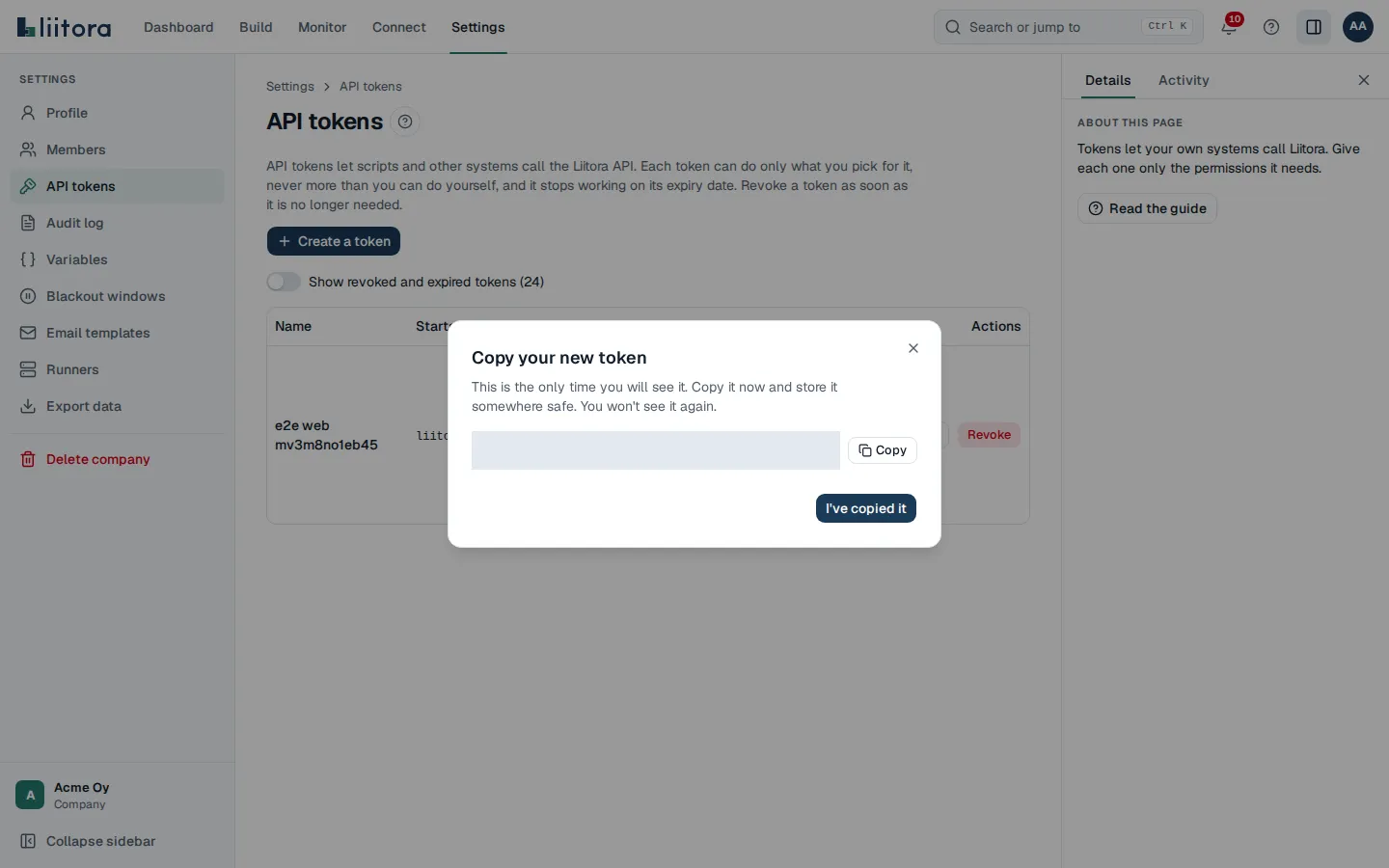
API tokens let scripts, other systems and AI assistants call the Liitora API and the MCP server. Each token can do only what it was given, never more than the person who created it can do, and it always expires.
| Column | What it shows |
|---|---|
| Name | What the token is for. |
| Starts with | The first characters, so you can recognise it. The full token is never shown again. |
| Access | Read-only or Can make changes, and the list of what the token may do. |
| Status | Active, Paused (the sign-in account of the person who created it is turned off), Expired or Revoked. |
| Used | When it was created, last used and when it expires. |
| Actions | Edit: change the name, what the token may do, the expiry date and the allowed addresses. The token stays the same, so anything using it keeps working. Revoke: anything using the token stops working at once. This can’t be undone. |
Create a token asks for a Name, What the token may do (the reading permissions are ticked to start with; approving, showing secret values and managing tokens are never offered), Expires on (90 days from today to start with, at most about a year; empty means 90 days) and Allowed addresses (IP addresses or ranges; empty means any address). After Create you see the token once: select Copy the token, store it safely and select I’ve copied it.
The list shows the tokens that work or are paused. When some are revoked or have expired, switch on Show revoked and expired tokens to see them too.
Edit opens the same form with the token’s current settings filled in. The expiry date can be at most a year after the day the token was created. Only active and paused tokens can be changed.
Only people can create, change and revoke tokens. A token or an AI assistant can never create or change a token. See Create API tokens.
Audit log
Section titled “Audit log”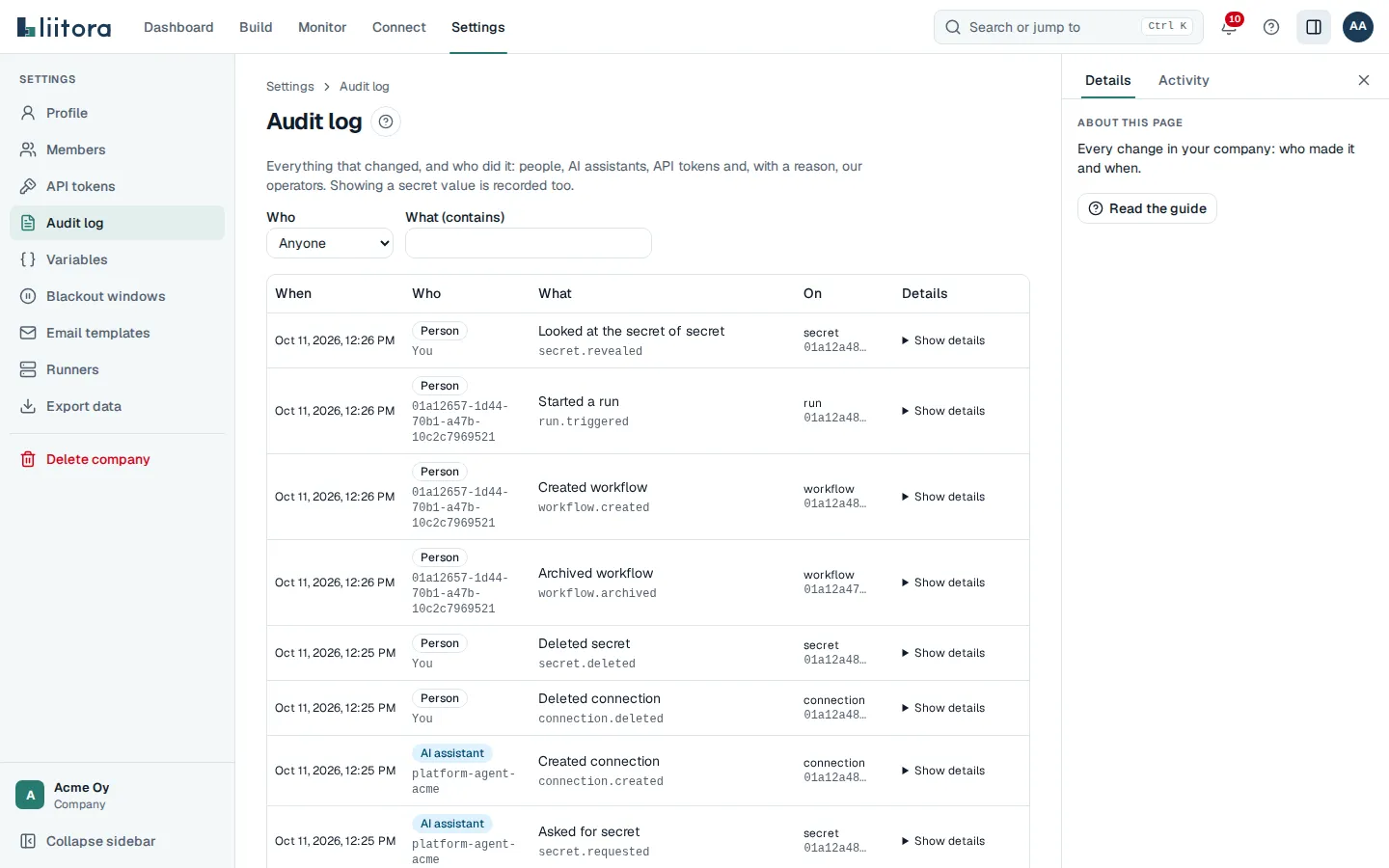
Everything that changed, and who did it: people, AI assistants, API tokens and, with a reason, our operators. Showing a secret value is recorded too. The log can’t be edited or deleted.
- Columns: When, Who, What, On and Details (Show details). What says what happened in plain words, for example Archived workflow, with the action code below it. On shows the start of the object’s ID; point at it to see all of it.
- Who shows Person (or You), AI assistant, API token, Liitora operator with Reason:, or Liitora for changes the system made.
- Filters: Who and What (contains), for example
secret.revealedorworkflow.. Select Show more for older entries.
Members
Section titled “Members”Admins see who is in the company and manage access. Other people see only what each role can do.
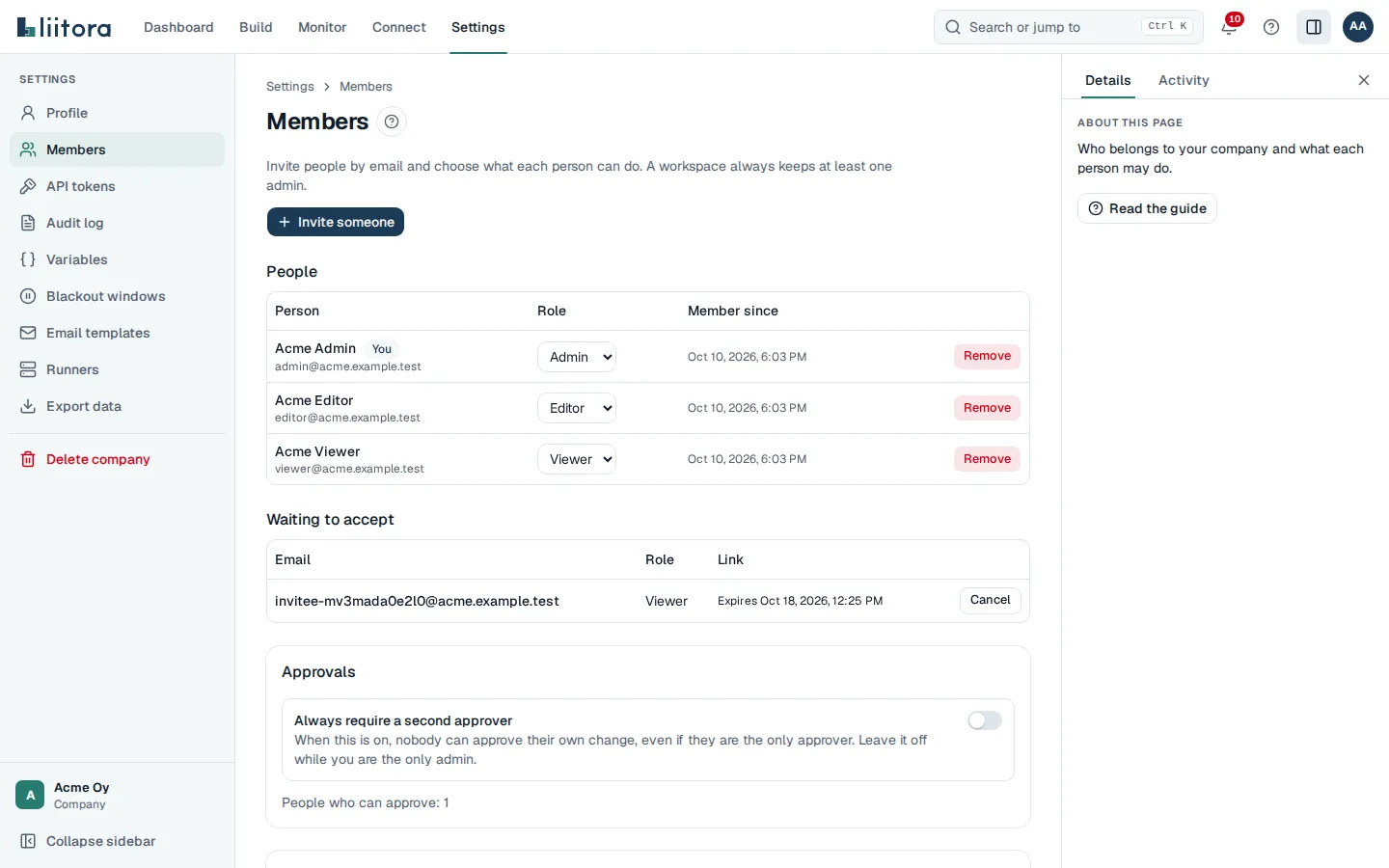
- Invite someone: opens a form with Email and Role, and Send invite. The invite goes out by email.
- People: each member with their name and email, You next to yourself, the Role (change it right there), Member since and Remove.
- Waiting to accept: open invites with their email, role and when the link expires (Expired when it has), and Cancel.
- Approvals: Always require a second approver, and how many people can approve. With the box ticked, nobody approves their own change, even the only admin, and nobody approves what their AI assistant or API token made for them. See Who may approve.
- AI: Allow AI steps (on by default) and Strict mode (off by default), with when they were last changed. Only admins change them; everyone else sees them read-only. See AI in workflows.
- What each role can do: Admin, Editor, Viewer and AI assistant.
The last admin can’t pick another role or be removed. See Manage users and roles.
The invite page
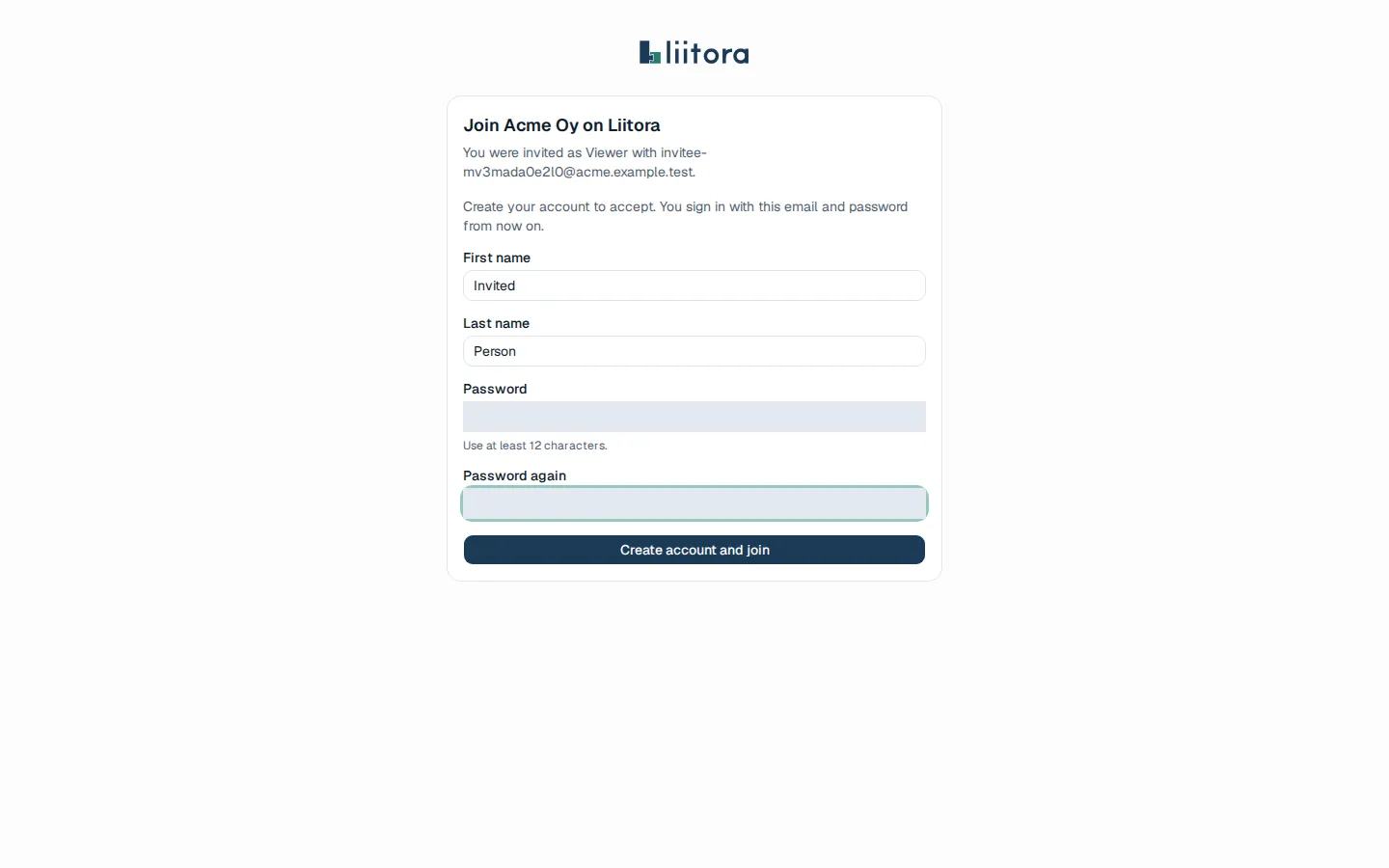
Section titled “The invite page”The page an invite email links to. It shows the company, the email and the role. New people need no sign-in: they enter First name, Last name, Password and Password again, then select Create account and join. People who already have an account with the invited email select Sign in to accept, sign in with that account and come back to the page, which then shows who is signed in, Accept the invite and Sign out. Afterwards, Sign in opens the sign-in page.
Blackout windows
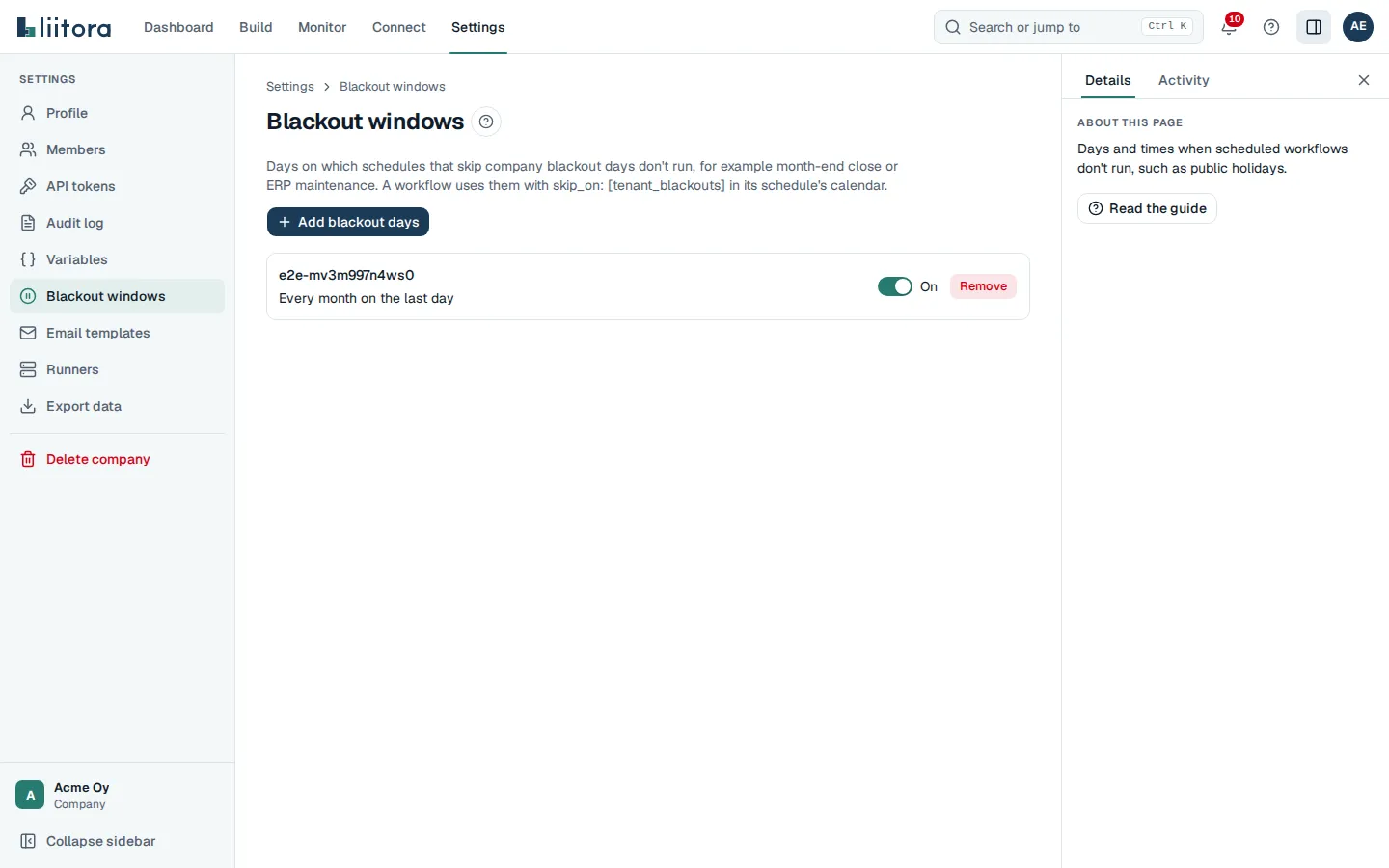
Section titled “Blackout windows”Days on which schedules with skip_on: [tenant_blackouts] don’t run. Each window shows its name, its rule in words (for example Every month on the last day), its description, On and Remove. Add blackout days asks for a Name, a Description, how it Repeats and the days. See Your own blackout windows.
Variables
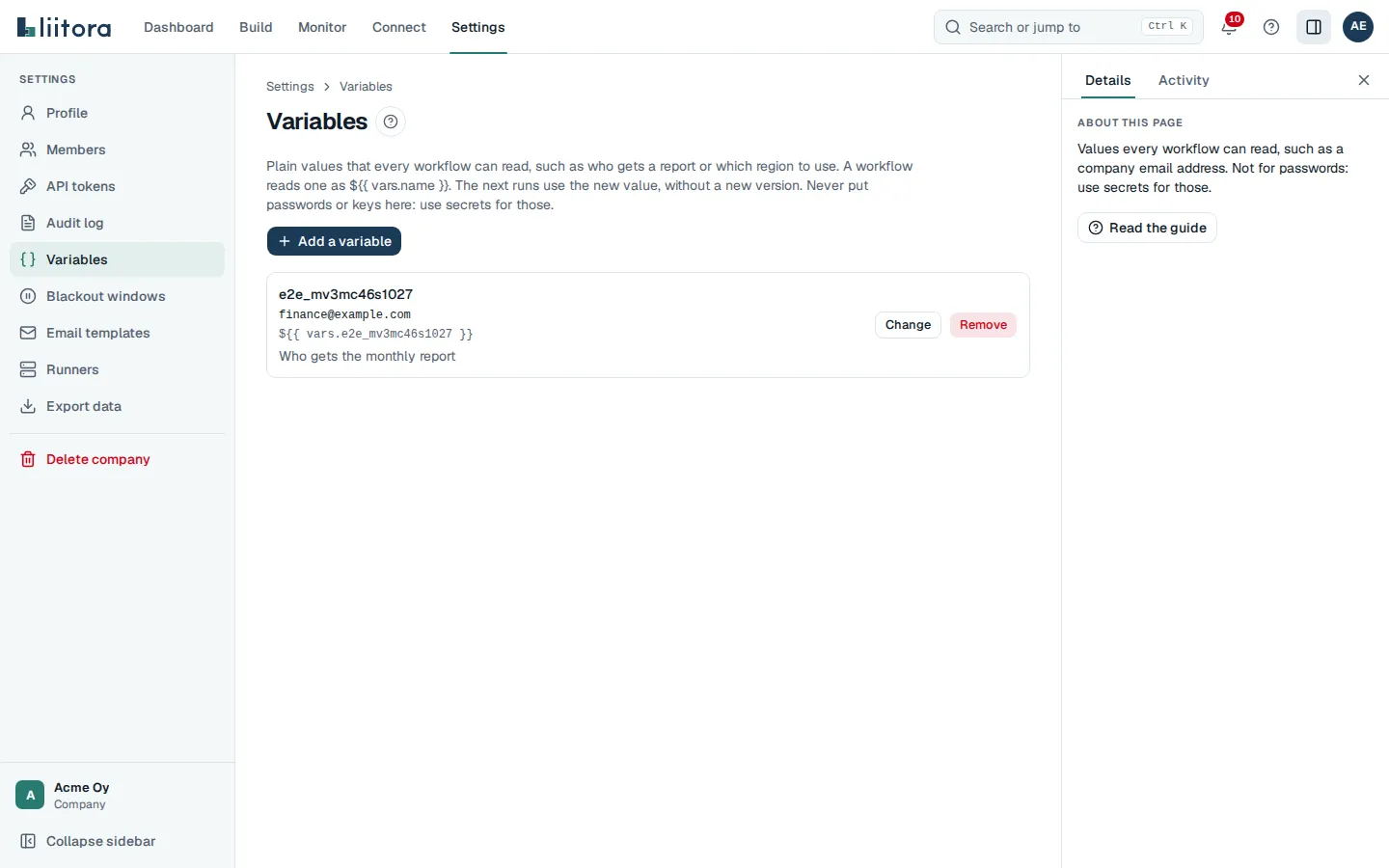
Section titled “Variables”Company variables that every workflow reads as ${{ vars.<name> }}. Each one shows its name, its value, how a workflow reads it and what it’s for. Add a variable asks for a Name, a Type (Text, or Number, true/false, list or object (JSON)), a Value and what it’s for. Change and Remove need the Activate workflows permission; without it the page is read-only. See Use company variables.
Email templates
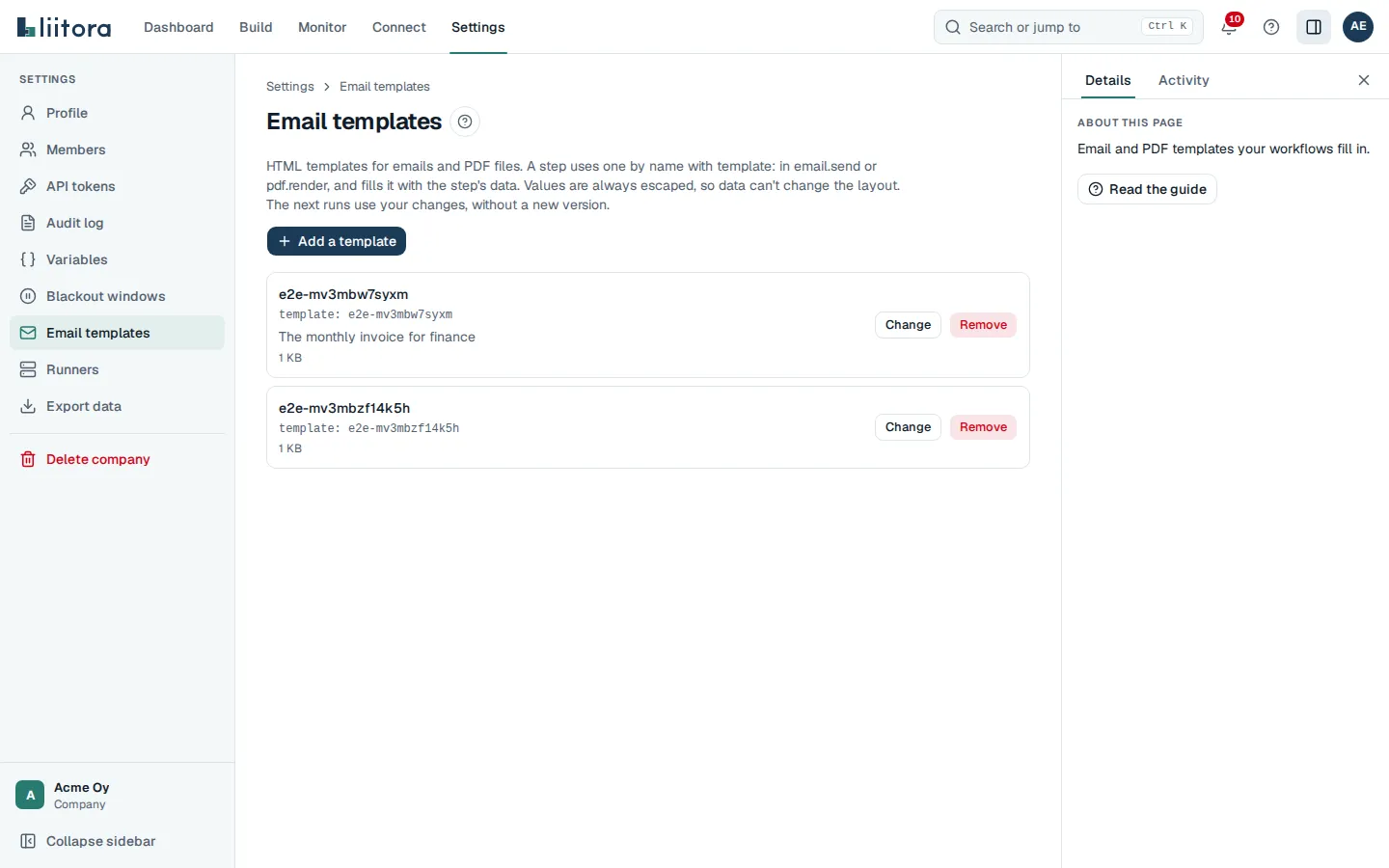
Section titled “Email templates”HTML templates for email.send and pdf.render. Each one shows its name, how a step uses it (template: <name>), what it’s for and its size. Add a template asks for a Name, what it’s for and the Template itself; Liitora checks it when you save and names the line of any mistake. Change loads the saved template to edit. Change and Remove need the Activate workflows permission. See Use email and PDF templates.
Runners
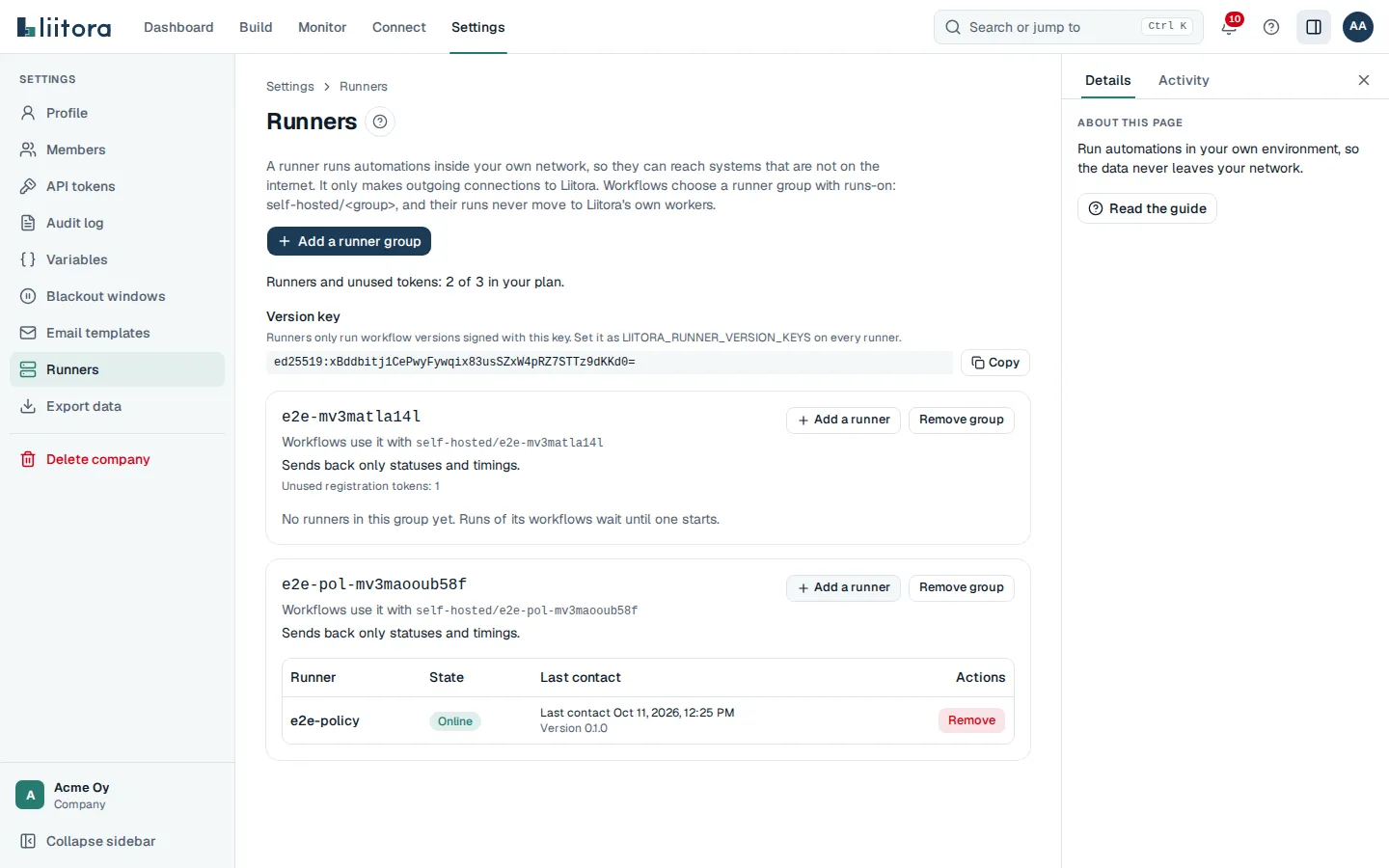
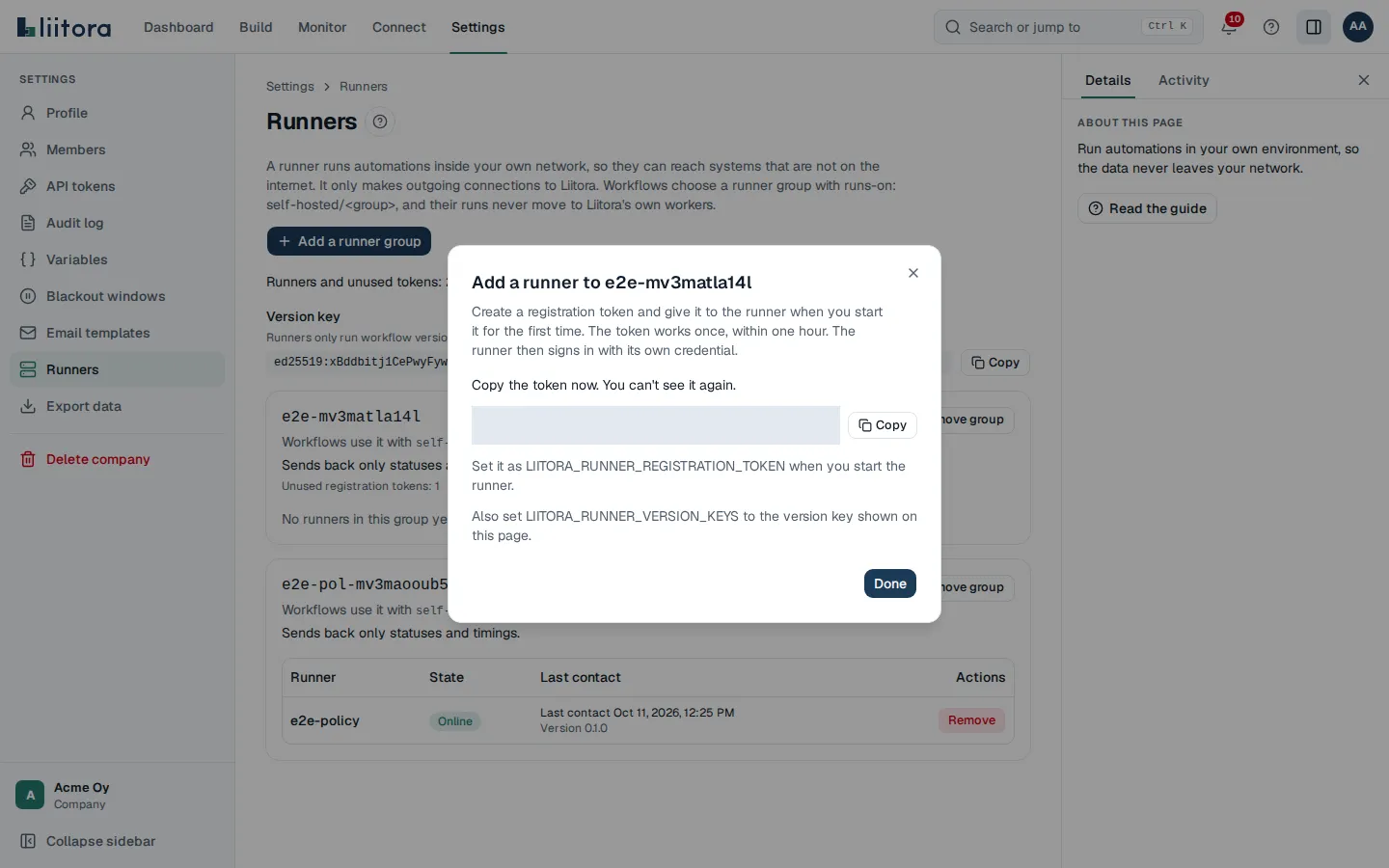
Section titled “Runners”Runner groups and the runners in your own network. Each group shows how workflows use it (runs-on: self-hosted/<group>), what its runners send back, its unused registration tokens and its runners with Online or Offline, their last contact and their version. A runner is Online when it contacted Liitora in the last 2 minutes. The list refreshes every 30 seconds.
The page also shows the Version key to set on every runner, and how many runners and unused tokens your plan allows. Add a runner group, Add a runner, Remove and Remove group need the Manage runners permission. When your plan has no runners, the page says so and you can’t add a group. See Run automations in your own environment.
Add a runner creates a registration token and shows it once.
Export data
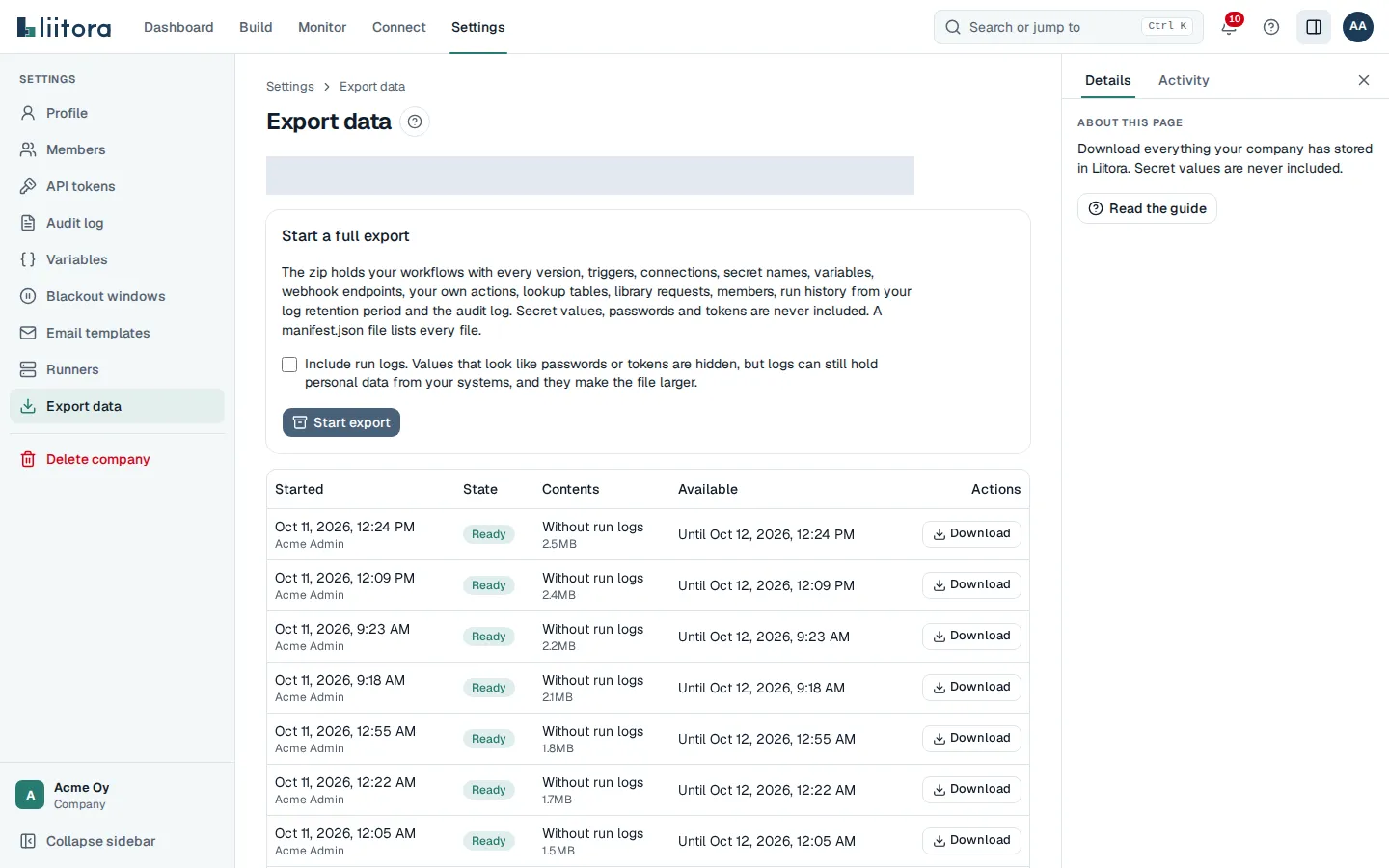
Section titled “Export data”Download a copy of all your company’s data as one zip file. Start a full export lists what the zip holds and has the Include run logs choice, off by default, and the Start export button. While an export is waiting or being built, the button is turned off.
The list shows your company’s recent exports with when and by whom each was started, its state (Waiting, Being built, Ready, Failed or Expired), whether it has run logs, its size and how long it can be downloaded. Download saves a ready export. A failed export shows why it failed. The list refreshes by itself while an export is being built.
Only people with the Export company data permission see the list. Everyone else sees “Only company admins can export all of the company’s data.” See Download a full export.
Delete company
Section titled “Delete company”Delete the whole company and everything it holds in Liitora. Delete this company says what is erased, how long the waiting period is, and that you should download a full export first. Type the company’s name in the box to confirm. Delete the company turns on only when the name matches exactly.
After you confirm, the page shows The company will be deleted with the date after which everything is erased, and a Sign out button. Nobody can sign in to the company any more from that moment.
Only people with the Delete company permission see the form. Everyone else sees “Only company admins can delete the company.” See Delete your company.