

Manage users and roles
Who this is for: admins who decide who can do what in Liitora.
Before you start: nothing, to read about the roles. To invite people or change who has access, you need to be an admin of your company in Liitora.
Everyone who uses Liitora has a role in your company. The role decides what they can see and change. AI assistants have their own role, which can never approve workflows or see secret values.
The roles
Section titled “The roles”| Role | Who it is for | What it can do |
|---|---|---|
Admin (tenant_admin) |
The people responsible for Liitora in your company | Everything, including approving workflows, showing secret values, API tokens, the audit log and billing. |
Editor (tenant_editor) |
People who build and run workflows | Builds, tests, activates and runs workflows. Manages connections, webhooks and secrets. Cannot approve, show secret values, manage API tokens or see the audit log. |
Viewer (tenant_viewer) |
People who only need to look | Sees workflows, runs, usage and which secrets exist. Cannot change anything. |
AI assistant (agent) |
AI assistants connected through MCP with their own client | Builds and tests workflows, creates connections and webhooks, asks for secrets. Never approves, and never sees or sets secret values. |
You can see your own role and permissions in Settings, on the Profile page, under Roles and What you can do.
Permissions
Section titled “Permissions”Each role is a set of permissions. The permission names show up in error messages, for example “Permission needed: approve_workflow”.
| Permission | What it allows | Admin | Editor | Viewer | AI assistant |
|---|---|---|---|---|---|
View workflows (view_workflow) |
See workflows, versions, tests, connections and the library | yes | yes | yes | yes |
Edit workflows (edit_workflow) |
Create and change workflows and actions, run tests and test runs, ask for secrets | yes | yes | no | yes |
Approve workflows (approve_workflow) |
Approve a version, change a workflow’s activation policy | yes | no | no | no |
Activate workflows (activate_workflow) |
Activate, pause, resume and archive workflows, start production runs | yes | yes | no | yes, only when the workflow allows it |
View runs (view_runs) |
See runs, logs, files, incidents and alerts | yes | yes | yes | yes |
Manage webhooks (manage_webhooks) |
Create and change webhook endpoints | yes | yes | no | yes |
View secrets (view_secrets) |
See which secrets exist and their status, never values | yes | yes | yes | yes |
Manage secrets (manage_secrets) |
Add, fill in, rotate and delete secret values | yes | yes | no | no |
Reveal secrets (reveal_secret) |
Show a secret value or a webhook signing secret | yes | no | no | no |
Manage connections (manage_connections) |
Create, change, test and delete connections, email senders, alert channels and rules | yes | yes | no | yes |
Manage members (manage_members) |
Invite people, change roles, remove members, choose who may approve | yes | no | no | no |
Manage runners (manage_runners) |
Add and remove runner groups and runners, create registration tokens | yes | no | no | no |
Manage API tokens (manage_api_tokens) |
Create and revoke API tokens | yes | no | no | no |
View audit log (view_audit_log) |
Read the audit log | yes | no | no | no |
View usage (view_usage) |
Read usage against plan limits | yes | yes | yes | no |
Manage billing (manage_billing) |
Export invoice data | yes | no | no | no |
Export company data (export_company_data) |
Start and download an export of all your company’s data | yes | no | no | no |
Delete company (delete_company) |
Delete your company and all its data | yes | no | no | no |
An AI assistant can only activate a workflow whose activation policy lets it. By default a person approves each version. See Approve a workflow.
Things only a signed-in person can do
Section titled “Things only a signed-in person can do”Some actions need a person, even when an AI assistant or an API token has the permission. This keeps a leaked token or a confused assistant from doing harm:
- approve a workflow version, and change a workflow’s activation policy,
- add, fill in, rotate, show and delete secret values,
- rotate, show and delete webhook signing secrets, and delete webhook endpoints,
- create and revoke API tokens,
- invite people, change roles and remove members,
- create, change, test and delete email senders and alert channels, and change notification settings.
- point a secret that someone else saved at a connection, email sender or alert channel, or change where such a connection sends it (this also needs Reveal secrets),
- change the address, hosts, token URL or secrets of a production connection (this also needs Approve workflows).
See Create a connection for the full rules.
API tokens
Section titled “API tokens”An API token can use only the permissions it was given when it was created, and only while the person who created it holds them. If that person gets a lower role, the token can do less too. If they leave your company, or their sign-in account is turned off, the token stops working. A new token gets the view permissions (view_workflow, view_runs, view_secrets, view_audit_log, view_usage) unless its creator picks others. It can never get approve_workflow, reveal_secret, manage_api_tokens, manage_runners, export_company_data or delete_company. See Create API tokens.
Invite someone
Section titled “Invite someone”- In Settings, select Members.
- Select Invite someone.
- Enter their work Email and pick a Role. You can change the role later.
- Select Send invite.
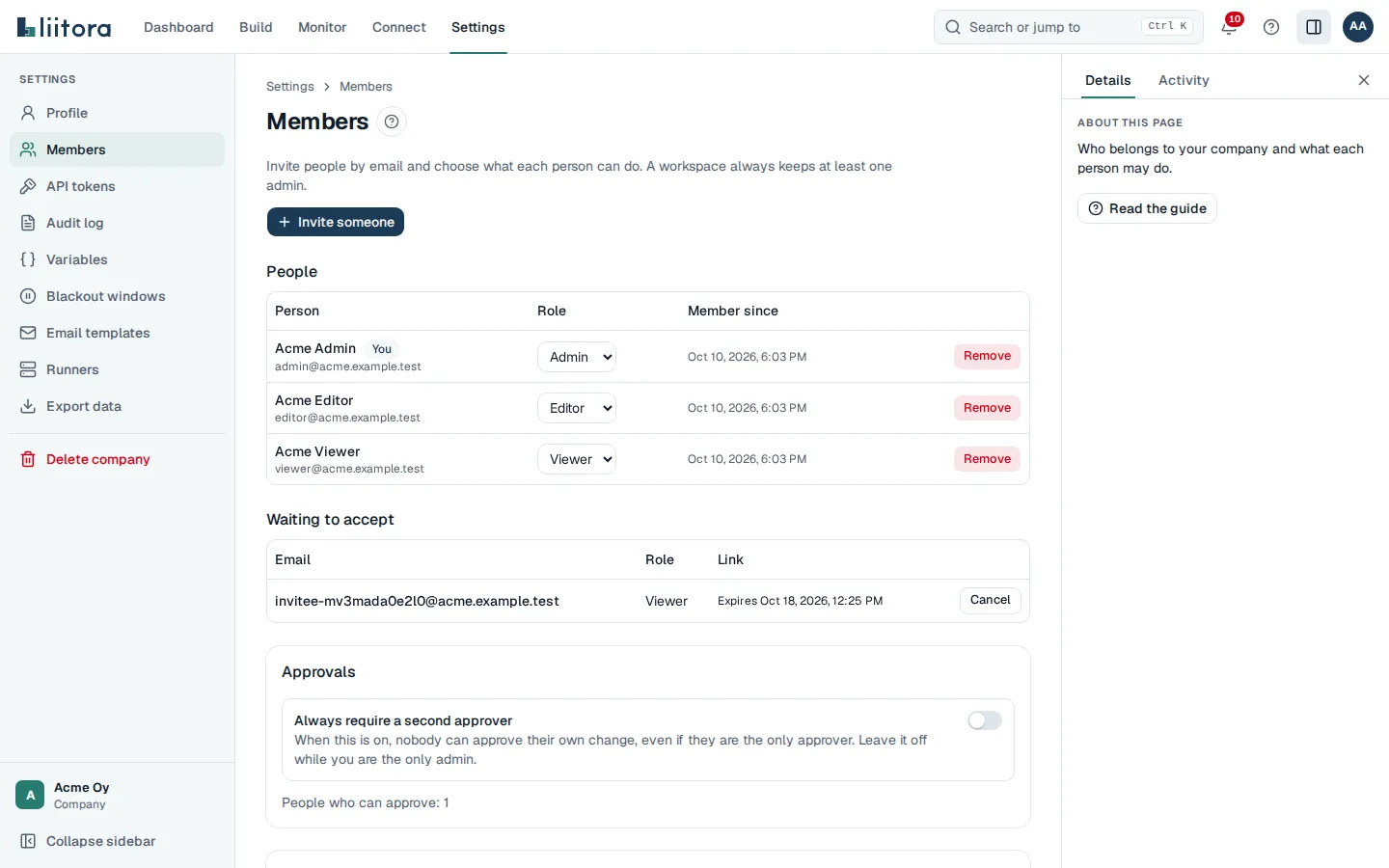
We email them a link from Liitora. The link works once and expires in 7 days. Until they accept, the invite is listed under Waiting to accept. To stop a link from working, select Cancel next to it. To send a fresh link, invite the same email again: the old link stops working. A link also stops working if the admin who sent it is no longer an admin of your company.
Each admin can send 20 invites an hour, and your company 50 an hour in total. Sending an invite again counts too. If you reach the limit, Liitora tells you how long to wait. See rate_limited.
What the invited person does
Section titled “What the invited person does”- They open the link in the email.
- If they are new to Liitora, they enter their first and last name and choose a password of at least 12 characters, then select Create account and join. They don’t need to sign in first.
- If they already have a Liitora account with that email, for example because you removed them earlier, they select Sign in to accept and sign in with that account. The invite page opens again, and they select Accept the invite. Only the account with the invited email can accept, so nobody else can take the invite.
- They select Sign in to start.
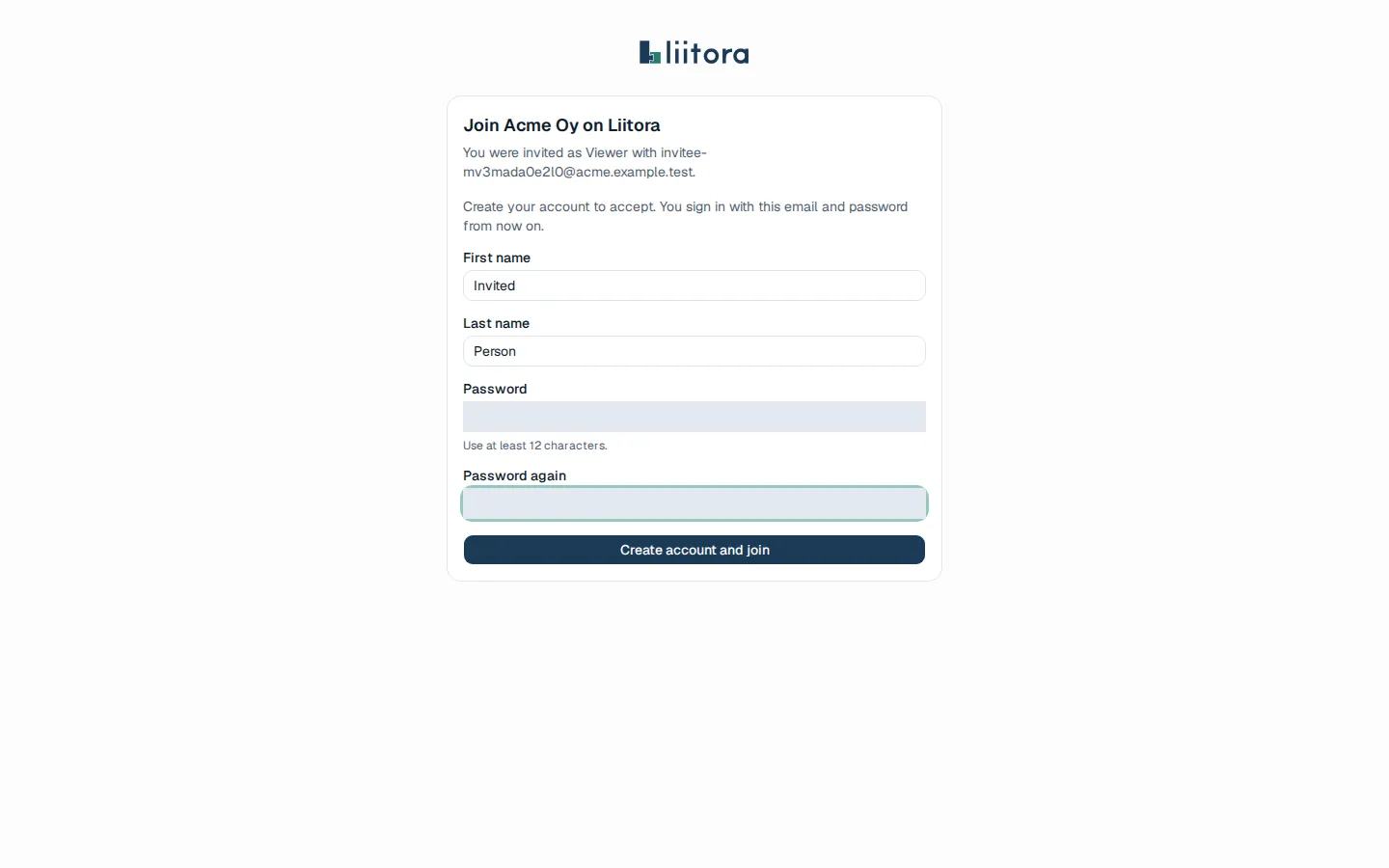
For now each person belongs to one company. If the email already signs in to another company, the invite page says so. Invite them with another email address.
People can’t change the email or username of their Liitora account themselves. This keeps an invite safe: nobody can switch their account to someone else’s address to take that person’s invite.
Change a role
Section titled “Change a role”In Members, pick the new role in the Role column. The change takes effect on the person’s next request: Liitora checks the role every time, so there is no delay.
Your company always keeps at least one admin. If you are the only admin, you can’t pick another role for yourself, and you can’t remove yourself. Make someone else an admin first.
Remove someone
Section titled “Remove someone”Select Remove next to the person and confirm with Remove from workspace. They lose access at once, the API tokens they created stop working, and the invites they sent can no longer be used. Their past changes stay in the audit log. Their sign-in account no longer belongs to your company. You can invite them again later: they then sign in on the invite page to accept.
Check what people did
Section titled “Check what people did”Every change in Liitora is in the audit log, with who made it: a person, an AI assistant, an API token or, with a reason, one of our operators. See the audit log.