

Approve a workflow
Who this is for: admins who decide which workflows run for real, and editors who activate approved versions.
Before you start: to approve you need the Approve workflows permission (approve_workflow), which only admins have. To activate you need the Activate workflows permission (activate_workflow), which admins and editors have. You usually cannot approve a version you wrote yourself. See Who may approve.
Workflows that your AI assistant or a colleague makes start as drafts. Nothing runs for real until a person checks the version and approves it. This page shows how to review a version, approve it and turn it on.
Open the approval page
Section titled “Open the approval page”There are two ways in:
- Select the Approve & activate link your AI assistant shows you in the chat.
- Open Workflows, open the workflow, and select Approve and activate.
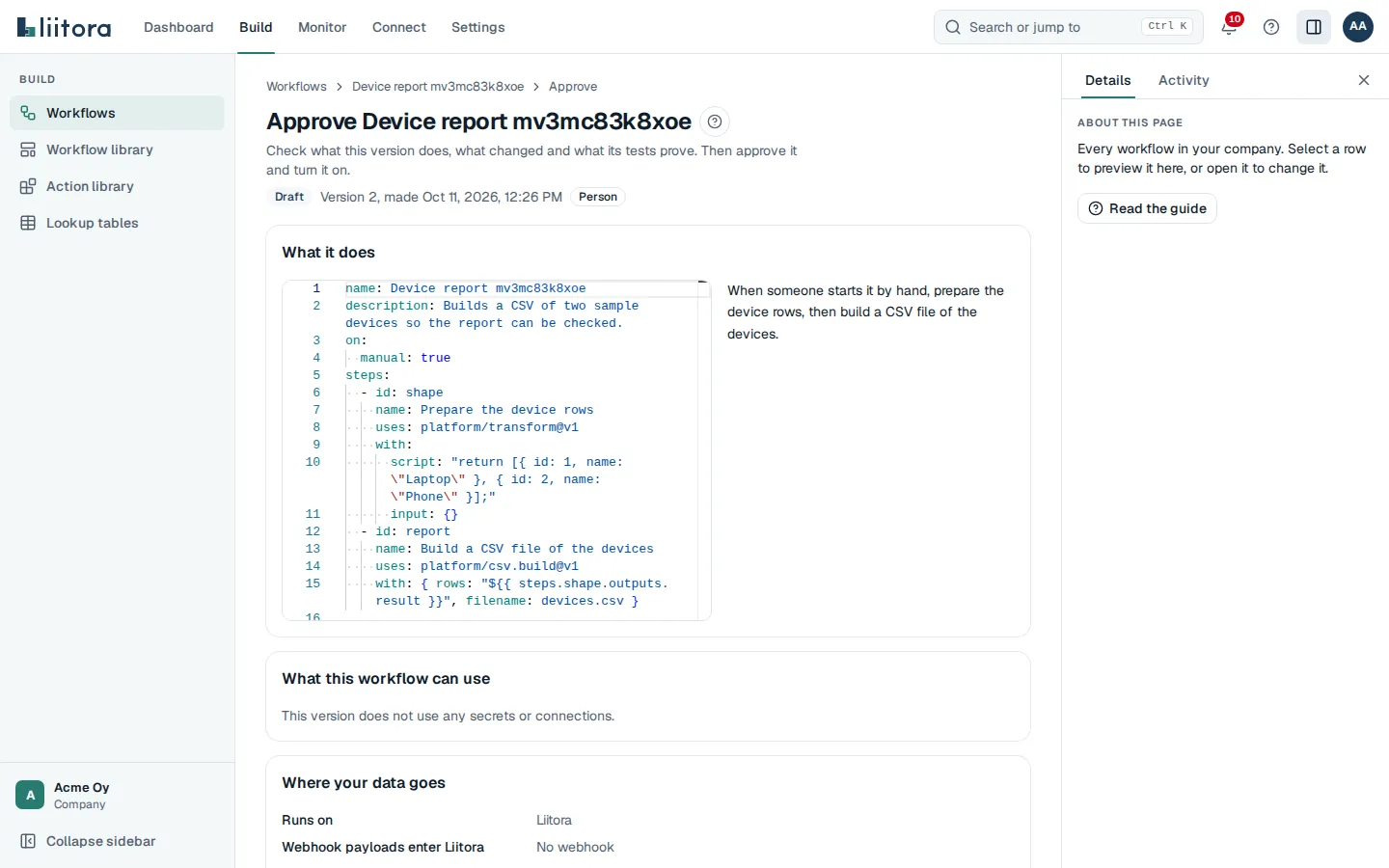
The page shows the version number, when it was made and who made it (a person, an AI assistant or an API token). If a newer version exists, the page says so and links to it.
Review the version
Section titled “Review the version”Read these sections before you decide:
-
What it does: the YAML of this exact version, with a plain English summary next to it. Check the schedule, the recipients and every system it writes to.
-
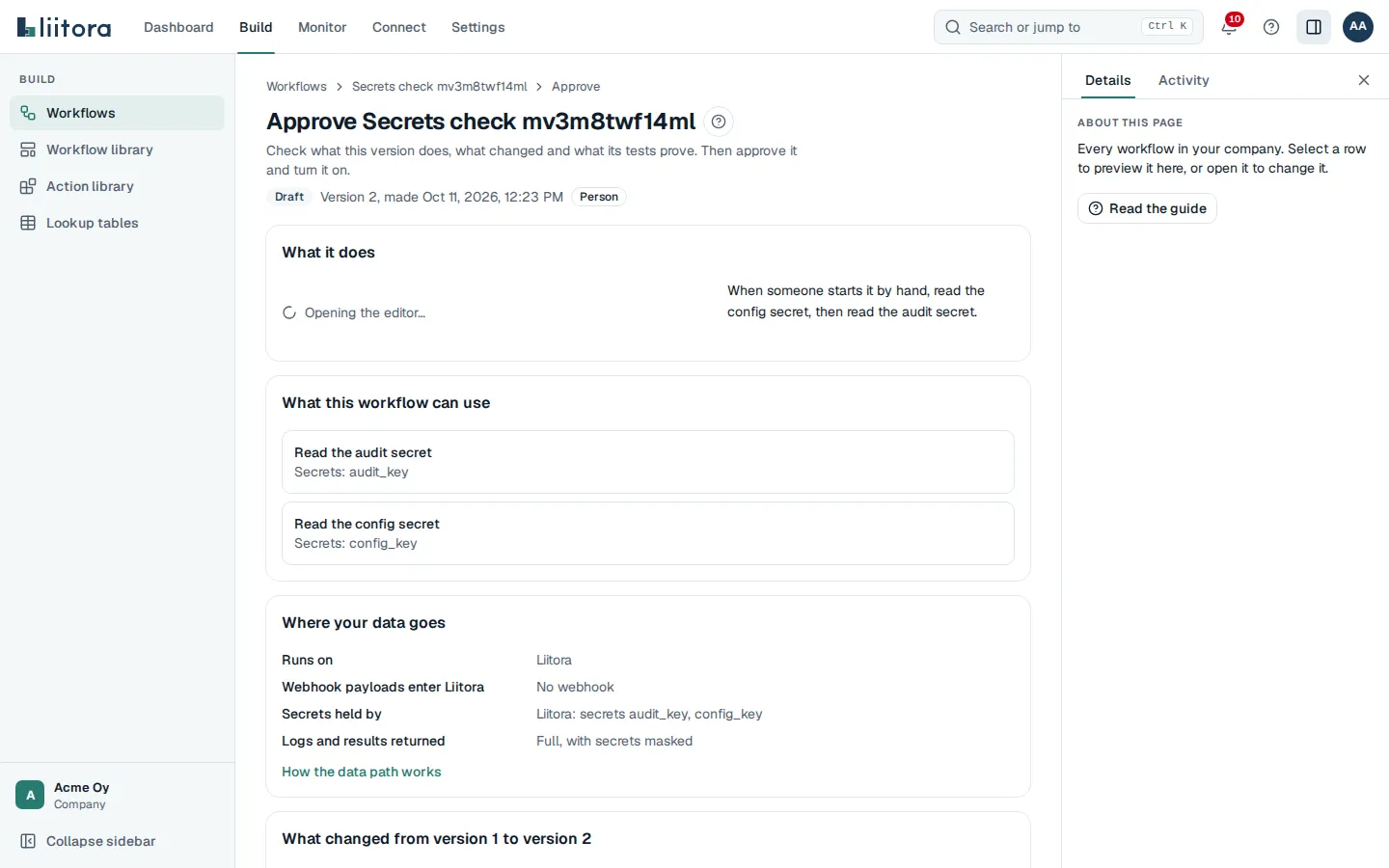
What this workflow can use: the secrets and connections each step reads, what any workflow it calls may use, and which action version each step is pinned to. A run of this version can use only what is listed here, nothing more. See Least privilege for runs.
-
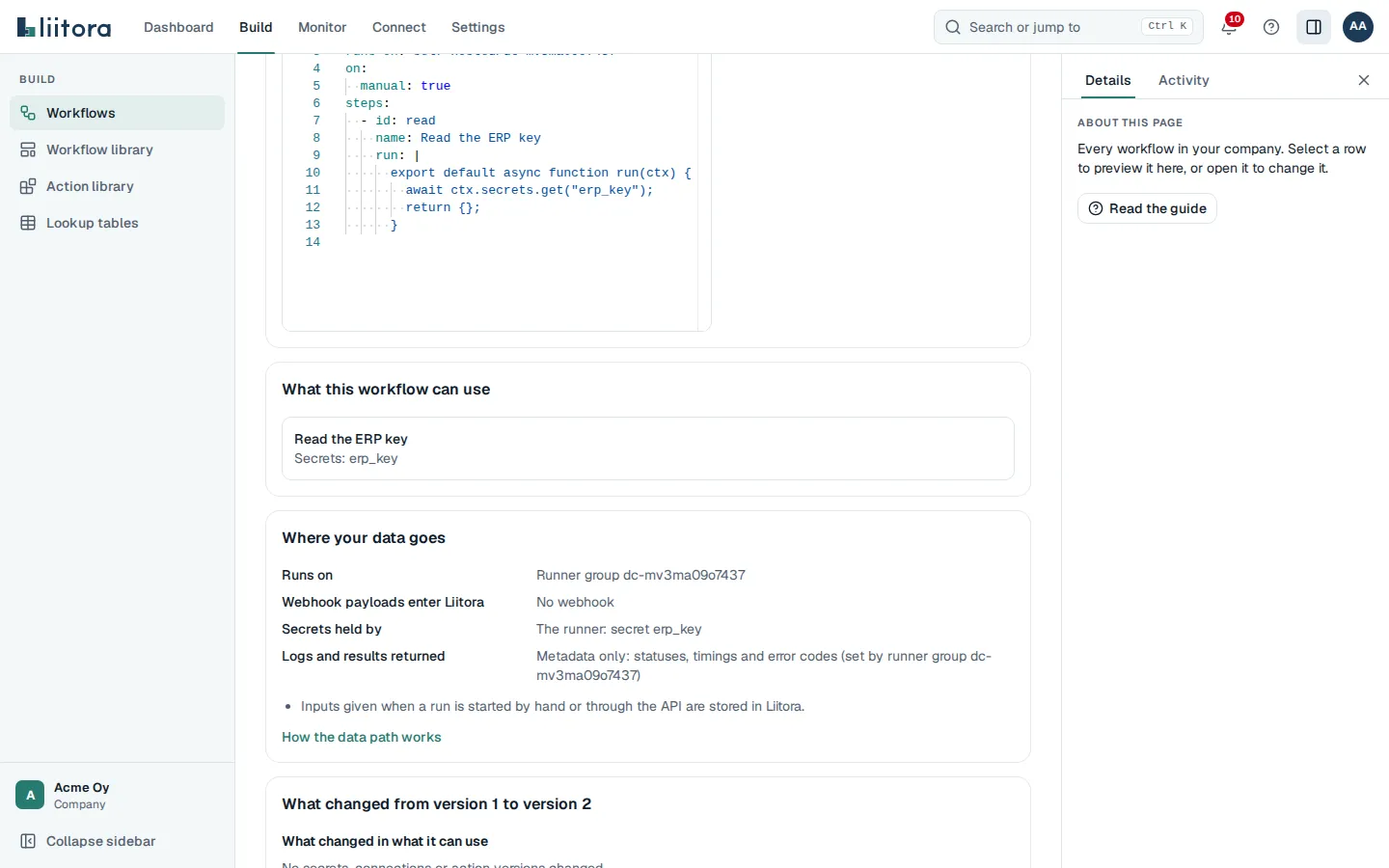
Where your data goes: where this version runs, whether webhook payloads enter Liitora, who holds its secrets (names only) and what comes back from its runs. See Where your data goes.
-
What changed from version N to version M: the differences from the version before, including what changed in what it can use and in where the data goes. For the first version there is nothing to compare.
-
What the tests check: every test case, with the sentences that say what it checks, for example “Sends email to it@example.com”. See Read and write workflow tests.
-
Before it can be activated: the checklist. Every item must be done before activation.
-
Expected cost: a cost estimate will show here. For now, check the usage after the first runs. See Understand usage and limits.
Approve and activate
Section titled “Approve and activate”- Type a Comment if you want to (optional), for example “Checked the recipients with IT.”
- If the page shows AI in this workflow, read what each AI step sends and tick the confirmations. See AI in workflows.
- Select Approve this version.
- Check that every item in Before it can be activated is done.
- Select Activate.
When the page says The workflow is active., the version runs in production. If the Activate button is disabled, the text under it says why.
The checklist
Section titled “The checklist”Activation checks these items in this order. The first one that is not done stops the activation, and the error code says which one.
| Item | Done when | Error code |
|---|---|---|
| Not archived | The workflow is not archived. | archived |
| Every action it uses exists | Every uses: action and called workflow exists. |
missing_actions |
| Every connection it needs exists | Every connection the steps use exists in production. | connection_missing |
| Every secret it needs is filled in | Every secret the scripts and connections use is set, and none has expired. | secret_missing, secret_requested, secret_expired |
| The tests pass on this version | The tests ran on this exact version, every case passed and the required minimum is met. | tests_not_run, tests_failed |
| A person approved this version | Someone who is not the author approved this exact version. | approval_required |
Each item has a Fix it link to the page where you can fix it.
What activation does
Section titled “What activation does”Activating a version makes it the one that runs in production:
- Its schedules start. The next run times follow the
on.scheduleentries. - Its webhook starts runs when deliveries arrive.
workflow_runchains after other workflows start.- A freshness expectation (
expect:) starts being checked.
A later version does not run until it is approved and activated too. The active version keeps running until then. If the workflow is paused, it stays paused when you activate a new version. Select Resume to start it again.
Who may approve
Section titled “Who may approve”Liitora keeps the person who writes a version and the person who approves it apart. This is called separation of duties.
- AI assistants never approve. They can draft, test and ask for approval, and they show you the link. This is true even when the assistant signs in as you.
- You may approve what your AI assistant made for you. A version saved through your AI assistant or with an API token counts as the assistant’s work, so any admin can approve it, including you. Reviewing the assistant’s work is the point. When your company requires a second approver (below), someone else approves it.
- A version you wrote yourself needs someone else. If your company has two or more admins, the page says “You wrote this version, so someone else needs to approve it.” The error code is
author_cannot_approve. - If you are the only admin, you may approve your own version. The page asks “You are the only approver. Approve your own change?” Tick the box, then select Approve this version. The audit log records it as a self-approval. Without the tick, the error code is
self_approval_unconfirmed. - Your company can require a second approver. An admin can tick Always require a second approver in Settings > Members, under Approvals. Then nobody approves their own version, even as the only admin, and nobody approves a version their AI assistant or their API token made for them. With the REST API it is
PUT /api/v1/approval-settingsand{"require_second_approver": true}. The error code issecond_approver_required. - Only admins approve. Editors can activate a version once an admin approved it.
- Approvals are for one exact version. A new version needs a new approval. With the REST API,
POST /api/v1/workflows/{id}/approveneeds theversion_noyou reviewed, so an approval never lands on a newer version by accident. You may also send that version’sdefinition_hash; if it doesn’t match, nothing is approved (definition_mismatch).
Every approval and activation is in the audit log, with who did it.
Least privilege for runs
Section titled “Least privilege for runs”A run of a workflow can use only the secrets and connections its approved version declares, nothing else. This is checked at every run, test run, dry run and replay, not only when you look at the approval page.
- Per step. Each step can use only the secrets, connections and (for a step that calls a tenant or library action) the exact action version its own script or
uses:needs. A step never reaches a secret or connection another step uses. - Called workflows. A step that calls another workflow (
uses: workflow/...) runs that workflow with its own approved version’s set. The approval page lists what the called workflow may use too, labelled with its name, so you see everything a run of this version can reach. - Pinned action versions. A step that uses a tenant or library action runs the exact action version that was resolved when the workflow was last saved, like a lockfile. A newer minor or patch version of the action is used only after the workflow is saved again and the new version is approved. The diff shows a changed pin, for example “The step Send the invoice now runs action version 2.1.3 (was 2.1.2).”
- Nothing recorded, no run. If a version’s capabilities could not be worked out, for example because it predates this check, the page says so and the version cannot run until a new version is saved and approved.
- Before you approve. A test run or dry run of a version no person approved yet reads only the secrets that the last approved version reads. Its web requests reach only the hosts of its own connections, and it sends no email. Once you approve the version, it can use everything it declares. See Before a person approves the version.
If a run is refused because it tried to use something outside its version’s set, the run page shows the plain message and an Open the workflow to fix it link. Add the secret, connection or action reference to the workflow and save it as a new version. Production runs use that version once it is approved and activated. See secret_not_declared, connection_not_declared, capabilities_unknown, action_not_pinned and script_invalid.
Let the AI assistant activate tested versions
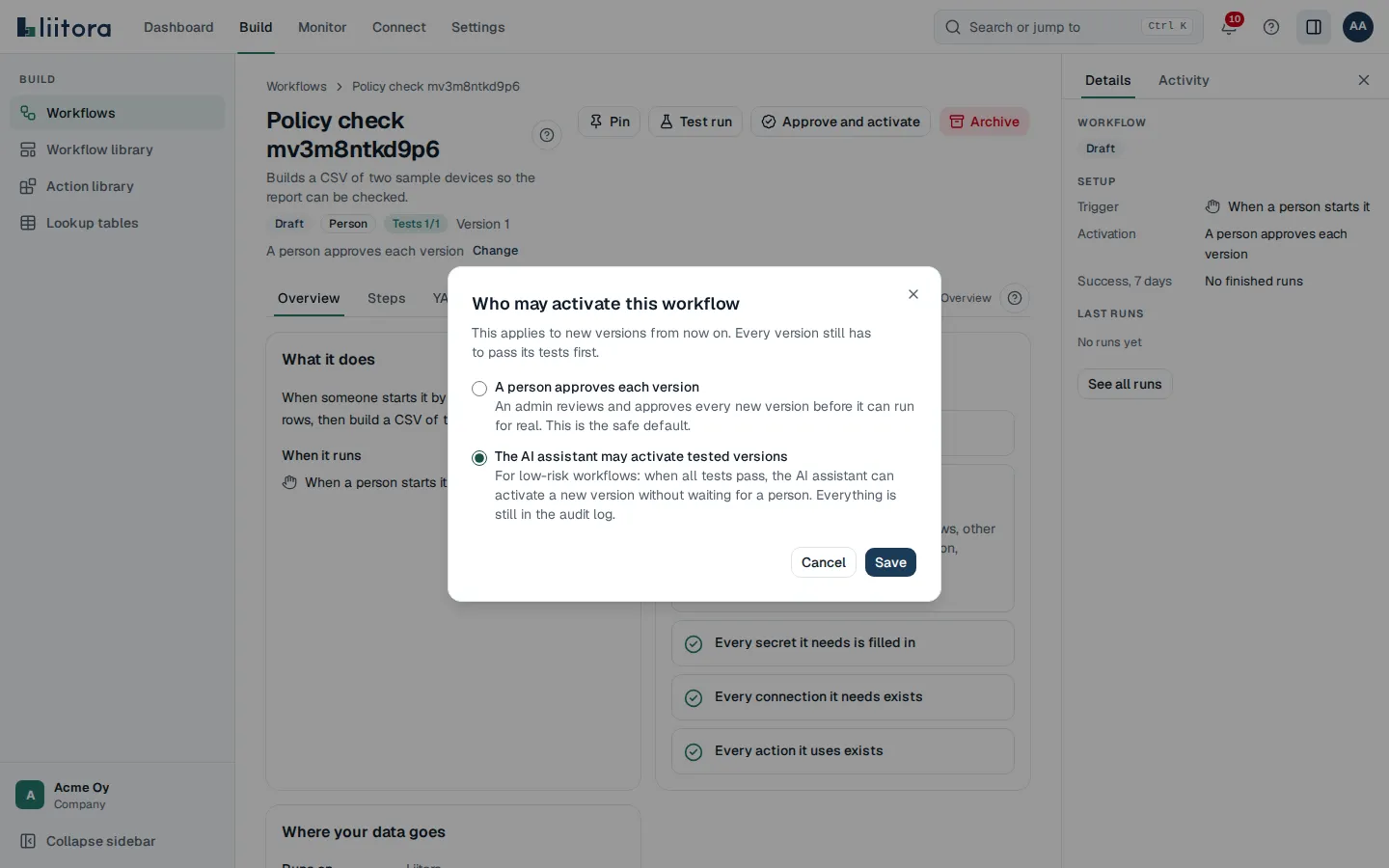
Section titled “Let the AI assistant activate tested versions”By default, every workflow uses the policy A person approves each version (human_approval). An admin can switch one workflow to The AI assistant may activate tested versions (agent_may_activate). Then a version with green tests can be activated without a separate approval, by the AI assistant too. All other checklist items still apply.
- Open the workflow.
- Next to the policy under the title, select Change.
- Pick The AI assistant may activate tested versions, then select Save.
To go back, pick A person approves each version the same way. Only admins see Change, and only a signed-in person can change the policy. AI assistants and API tokens are refused. With the REST API it is PUT /api/v1/workflows/{id}/activation-policy with {"activation_policy": "agent_may_activate"}.