

Read run logs
Who this is for: anyone who checks whether workflows ran, and people who fix failing ones.
Before you start: you need the View runs permission (view_runs) to see runs. Every role has it. To retry, run again or cancel you also need the Edit workflows permission (edit_workflow), and for production runs the Activate workflows permission (activate_workflow). Admins and editors have both.
Every time a workflow runs, Liitora records a run: when it started, what started it, what each step got and returned, every HTTP call and every log line. This page shows how to read a run and what to do when it failed.
Find a run
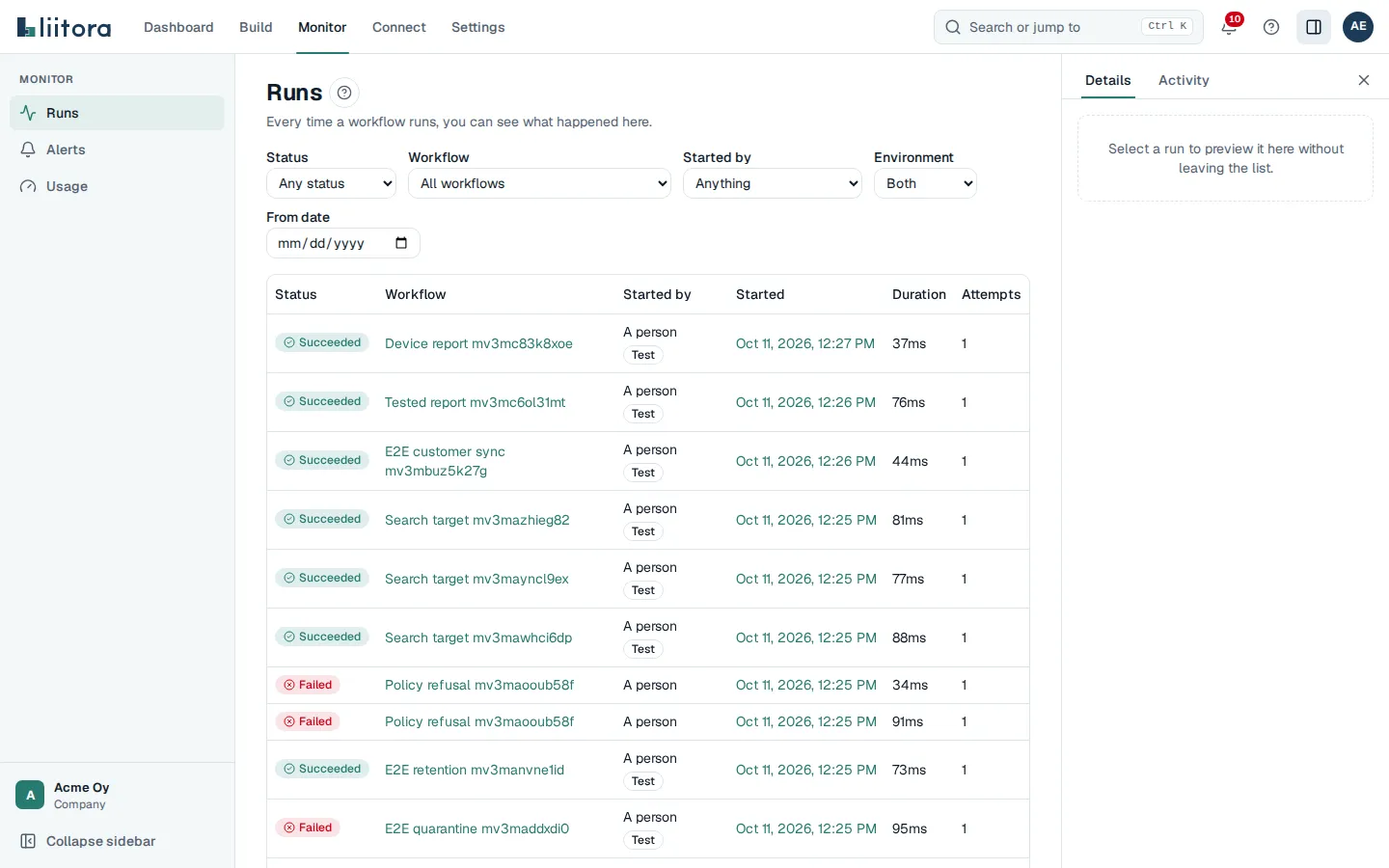
Section titled “Find a run”- Open Runs.
- Narrow the list with the filters if you need to: Status, Workflow, Started by, Environment and From date.
- Select a run to open it.
You can also open a workflow and select the Runs tab to see only its runs.
Run statuses
Section titled “Run statuses”| Status | Meaning |
|---|---|
| Queued | Waiting to start, for example for a free slot or a scheduled time. |
| Running | Steps are running now. |
| Succeeded | Every step that had to run succeeded. |
| Failed | A step failed, and the run stopped. |
| Failed for good | The run hit a temporary problem, was tried again automatically, and used up all its attempts. |
| Skipped | Every step was skipped, for example because there was nothing to do. |
| Cancelled | Someone cancelled it. |
Started by says what started the run: Schedule, Webhook, A person, API call, After another workflow, Called by a workflow or Test.
Read a run
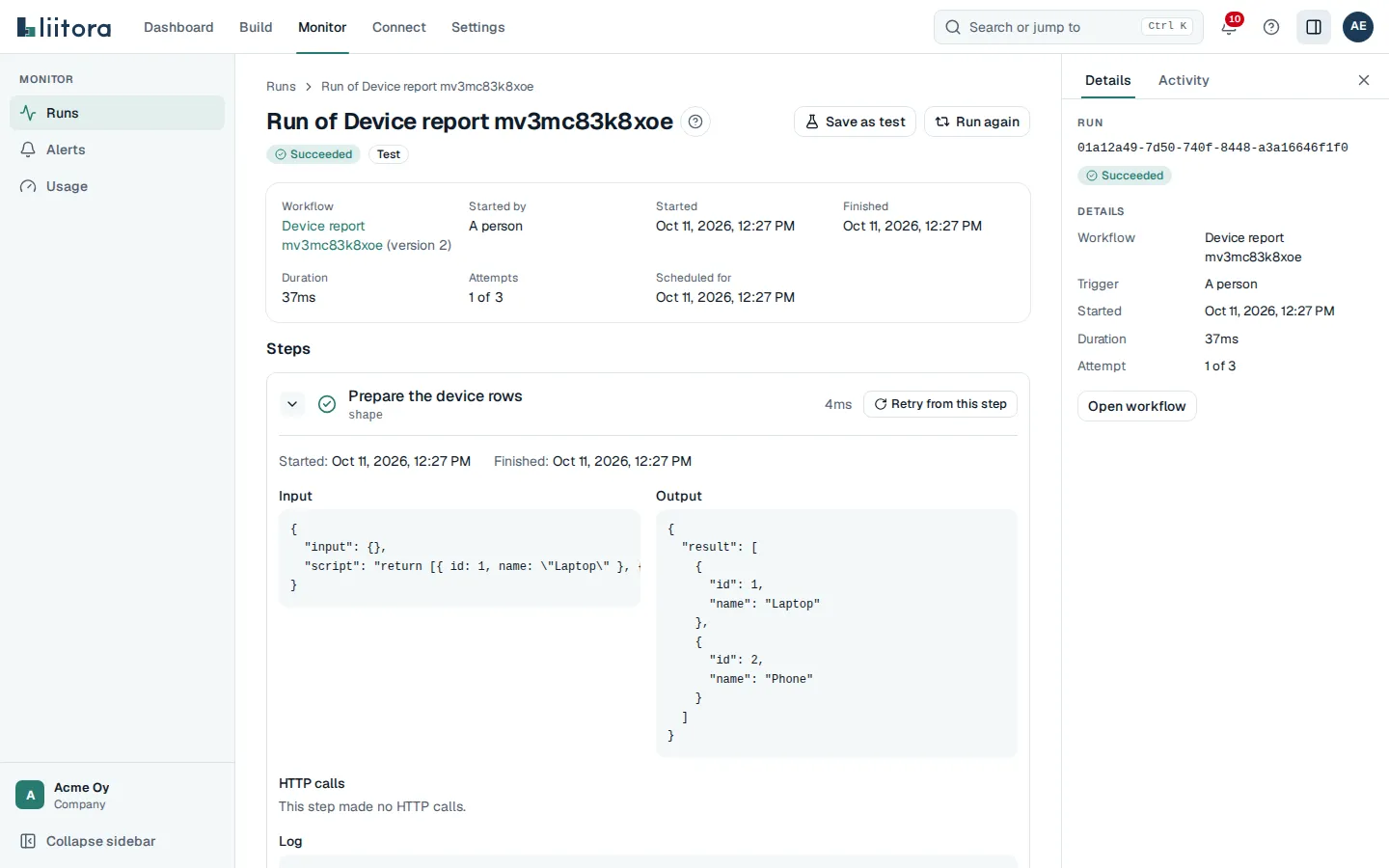
Section titled “Read a run”The run page shows who started it, the workflow and its version, the environment (Test or Production), when it started and finished, the duration and the attempts. A test run used only your test connections. Updating live means the page refreshes while the run is going.
Under Steps, each step shows its status and its duration, and the attempt number when the step was tried more than once. Open a step to see:
- Input: what the step got, after expressions were filled in.
- Output: what the step returned. Later steps can use it.
- HTTP calls: every request the step made, with Method, Address, Status and Time. No answer means the other system did not respond.
- Log: the log lines the step wrote, each with its time in your own time zone.
For steps that repeat for each item, each item is shown separately. When a value is too large to show, the page says so.
Files lists the files (artifacts) the run made, with their size, the step that made them and how long they are kept. Select Download to save one. Result shows the run’s final result.
Secrets stay hidden
Section titled “Secrets stay hidden”Secret values never appear in a run. Liitora removes them from inputs, outputs, log lines, HTTP calls, error messages, saved state and files, also when they are encoded (for example in base64). Headers such as Authorization and keys with names like token or password are masked. The real request to your system still carries the credential. If a file had a secret value removed, the step’s log says so. See Secret values are never stored.
How long runs are kept
Section titled “How long runs are kept”Run logs are kept for the number of days your plan allows (30, 90 or 365 days in the example plans). Files are kept for 30 days by default. The Files panel shows the date for each file. See Limits per plan.
Fix a failed run
Section titled “Fix a failed run”- Open the failed run.
- Find the first step with a failed status and open it.
- Read the error message and the error code. Look the code up in error codes.
- Check the step’s HTTP calls. A 401 or 403 means the sign-in was refused, a 404 a wrong address, a 429 too many requests, and a 5xx a problem in the other system.
- Fix the cause: rotate a secret, fix the connection or ask your AI assistant to fix the workflow.
- Start the run again with one of the options below.
Refused because of what the workflow can use
Section titled “Refused because of what the workflow can use”A run is refused, and stops right away, when it tries to use a secret, a connection or an action version its approved version did not declare (least privilege, see Least privilege for runs). The run page shows the plain message and an Open the workflow to fix it link that takes you straight to the workflow. Add what is missing under the step’s with: or connections:, save the workflow and get the new version approved, then start the run again. The error codes are secret_not_declared, connection_not_declared, capabilities_unknown, action_not_pinned and script_invalid.
Your AI assistant can do this with you. Ask it “Why did the last run of the weekly report fail?”. It uses get_incident, which explains the failed step, the last HTTP call and the likely cause, and get_run_logs for the full log.
Retry from this step
Section titled “Retry from this step”Use this when the first steps worked and you do not want them to run again, for example because they already sent data.
- Open the step you want to start from.
- Select Retry from this step.
- Select Start the retry.
A new run starts at that step, with the same version, environment and input. Steps before it that do not depend on it are not run again: their saved results and files are reused. The chosen step and everything after it run again. The new run shows Retry of the original run.
Run again
Section titled “Run again”Use this to start over from the first step with the same input.
- Select Run again.
- Select Start a new run.
Both options work only on finished runs. For a production run, the workflow must be active, and the run’s version must still be the live one:
- If a newer version is live now, the old run can’t run in production again (
version_not_released). Select Run now to start a new run with the live version, or start a Test run of the old version to see what it does. - If the workflow is paused, select Resume first (
workflow_paused). - Runs of an archived workflow never run again (
archived). - Runs older than your plan’s log retention can’t run again (
run_data_removed). Once that period has passed since a run finished, Liitora removes its input, its step inputs and outputs, its error messages and its result. The run page says so, and shows the status, times and error codes, which stay. Start a new run with new input instead.
Test runs and dry runs can always run again, with their own version, until the workflow is archived.
Cancel run
Section titled “Cancel run”- Select Cancel run on a queued or running run.
- Select Cancel the run.
A queued run stops right away. A running run stops after the step it is on now.
Replay many dead runs at once (API)
Section titled “Replay many dead runs at once (API)”A run is dead once it has used every attempt (Failed for good). When an upstream system was down for a while and left many runs dead, retrying them one by one is slow. GET /api/v1/dead-letters lists dead runs (filter by workflow, finish time, error code and environment); POST /api/v1/dead-letters/replay starts a new run for each one, either the run_ids you list or every dead run matching a filter (at most 1000). New runs start at a pace (rate_per_minute, 1 to 600, default 30) so the batch does not flood a system that has only now recovered. Each dead run is replayed once, ever: asking again reports it as already_replayed. The rules of Run again apply to each run: a run that may not run again is left out and listed under skipped with its reason, for example version_not_released or workflow_paused. If you pause the workflow while a batch is still starting, its runs that have not started yet stop before their first step. GET /api/v1/dead-letters/replays/{id} shows the batch’s progress. This needs the Edit workflows permission, and Activate workflows for production runs; your AI assistant cannot do it today, since no MCP tool covers it yet.