
Find your way around
Who this is for: everyone who uses the Liitora app.
Before you start: you need to be signed in.
This page shows the tour of the app, how the app is laid out, how to jump anywhere with the keyboard, and how to switch between the light and dark theme.
Take the tour
Section titled “Take the tour”The first time you sign in, a short tour opens. It dims the rest of the page and points at one button at a time: the five sections, the sidebar, search, the bell, help, the details panel and your account. It then shows where you start: it points at Build (on a phone, at the menu), and Next opens Workflows, as if you had selected Build yourself. Connect and Connections work the same way. When the tour ends, you are back on the page where it started.
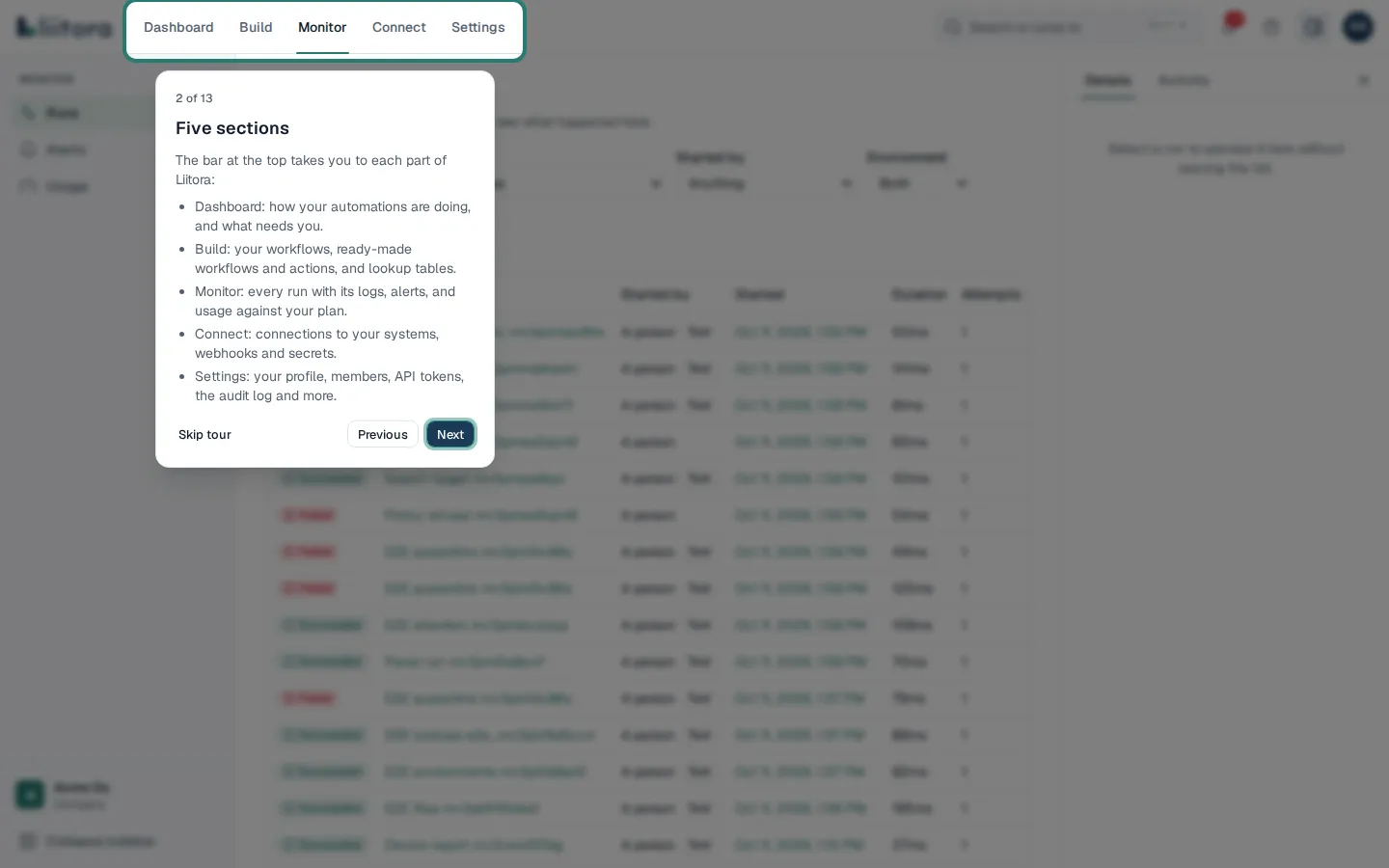
- Next and Previous move through the tour. The right and left arrow keys do the same.
- Skip tour or Esc closes it at any point.
- Pages and buttons you can’t use are left out. If you can’t edit workflows, the tour doesn’t open Workflows for you.
To take the tour again, select the help button (?) in the top bar, then Take the tour. The same menu has Help for this page, which opens this guide at the page you are on.
Liitora remembers in this browser that you have seen the tour, and stores nothing else. In another browser, or after clearing the site’s data, the tour opens once more.
The five sections
Section titled “The five sections”The bar at the top has five sections. Each one has its own pages in the sidebar on the left.
| Section | What you find there |
|---|---|
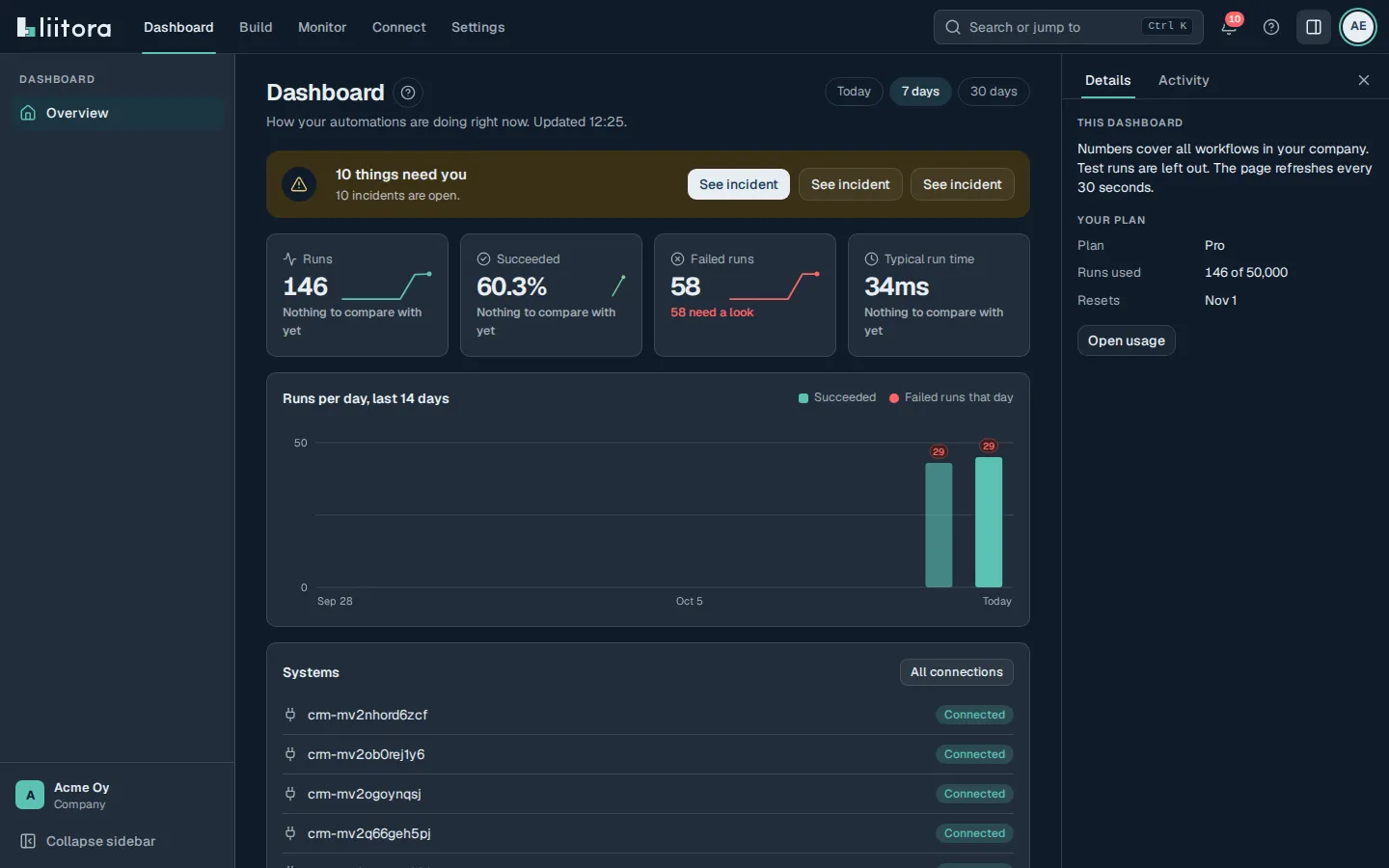
| Dashboard | How your automations are doing right now: runs, failures and the systems they use. |
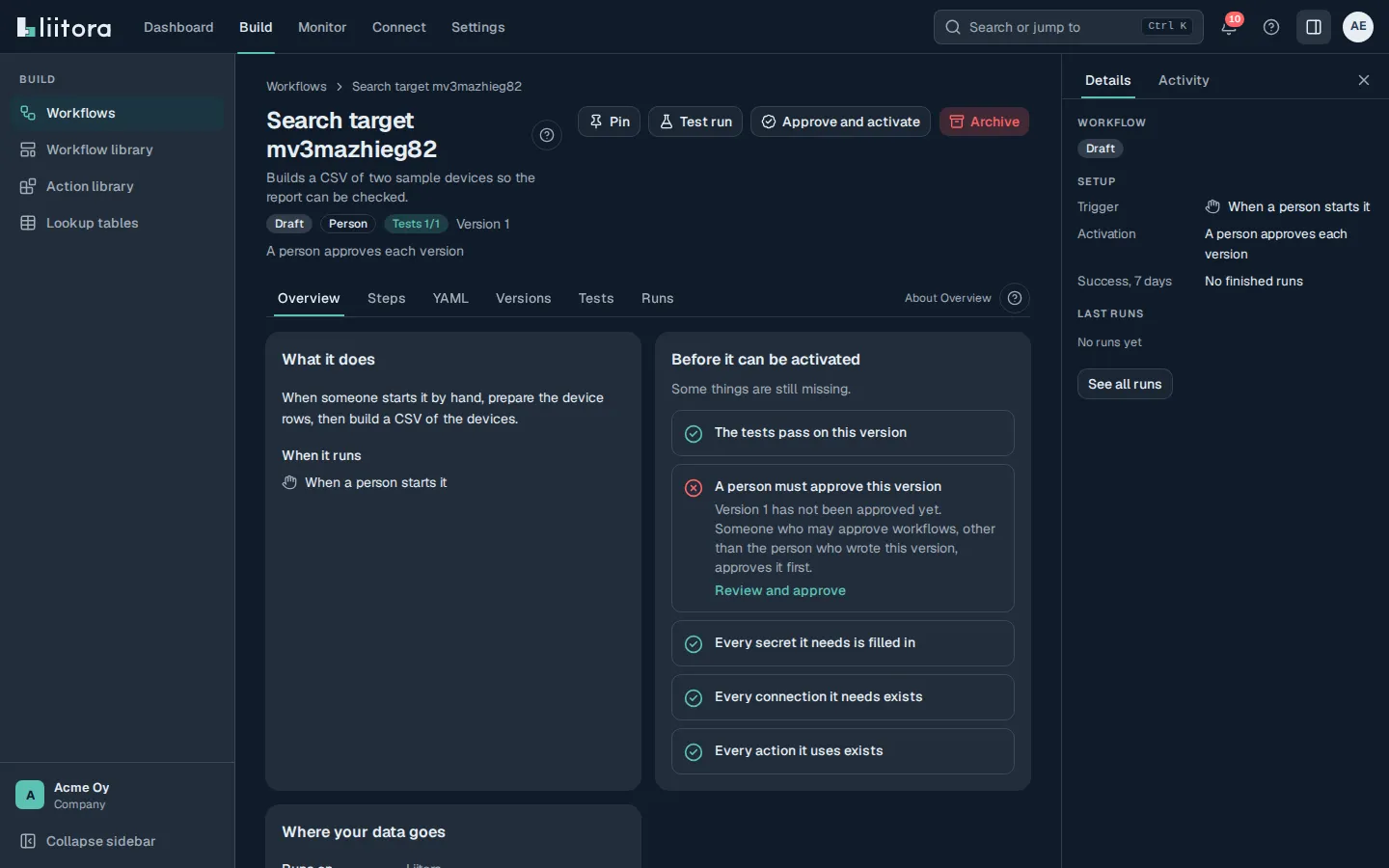
| Build | Workflows, the Workflow library, the Action library and Lookup tables. |
| Monitor | Runs, Alerts and Usage. |
| Connect | Connections, Webhooks and Secrets. |
| Settings | Your profile, members, API tokens, the audit log and the other company settings. |
Select Collapse sidebar at the bottom of the sidebar to make room for wide pages. Liitora remembers the choice in this browser.
Search and jump with Ctrl K
Section titled “Search and jump with Ctrl K”Press Ctrl K (⌘K on a Mac), or select Search or jump to in the top bar.
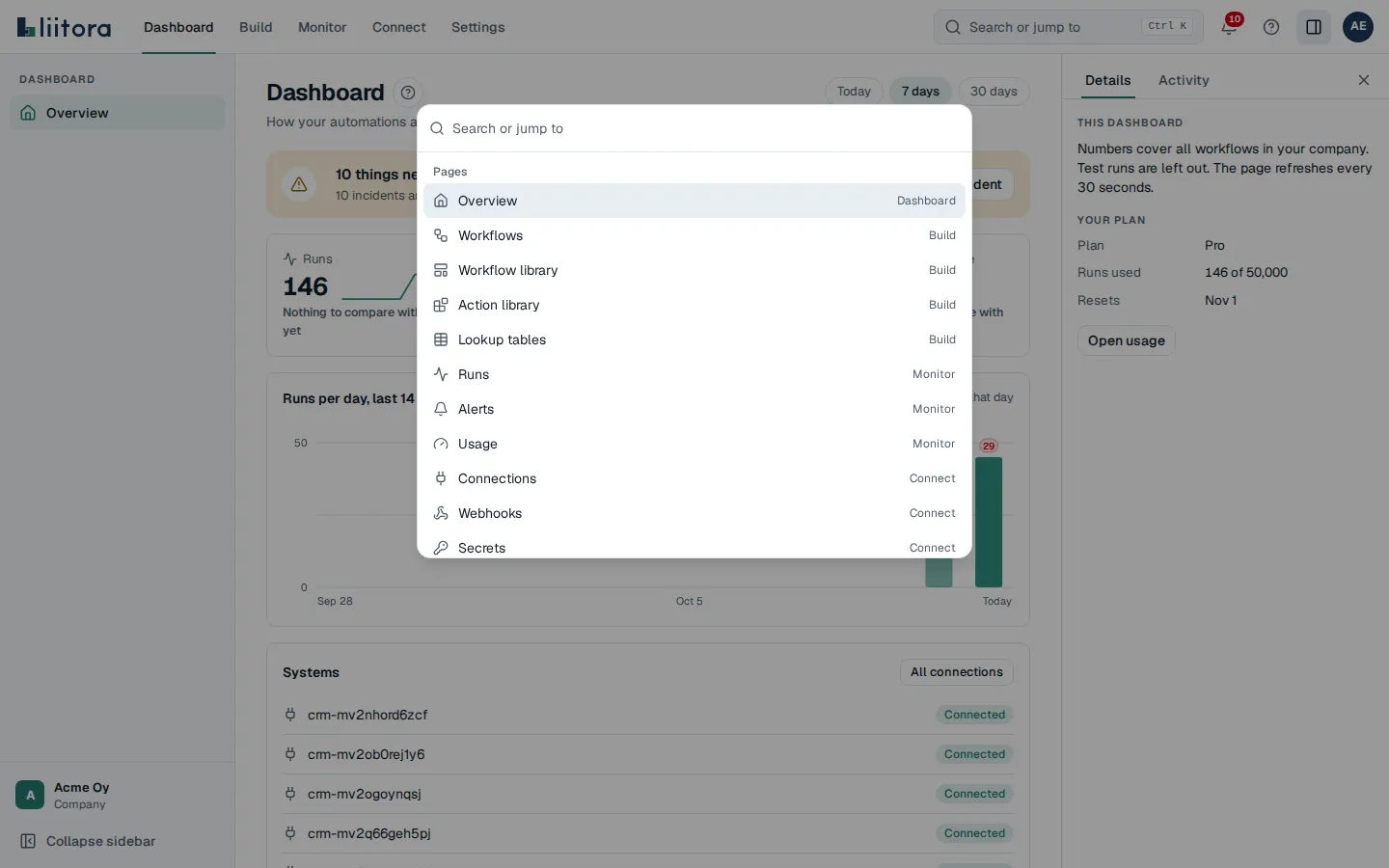
Start typing, then use the arrow keys to move and Enter to open. Esc closes the window.
- Pages: every page of the app, by its name or its section. Type “audit” to get to the audit log.
- Workflows: your company’s workflows whose name matches what you typed.
- Recent runs: the last five runs you opened since you signed in. Liitora keeps this list only in the open tab and forgets it when you reload or sign out.
- Commands: switch the theme, collapse or expand the sidebar, or report a problem.
To open a run, paste its id, for example from an alert email, and press Enter. If the run isn’t in your company, or you aren’t allowed to see it, Liitora says “No run with that id in your company”. It never says whether the run exists somewhere else.
In the workflow code editor, Ctrl K belongs to the editor. Click outside the editor first, or use the Search or jump to box.
Light, dark or system theme
Section titled “Light, dark or system theme”Open the user menu (your initials in the top right) and pick a theme under Theme:
- Light or Dark stays the same all the time.
- System follows your computer’s setting, and changes when your computer switches between light and dark. This is the default.
You can also type “dark theme” or “light theme” in the search window.
Liitora remembers the choice in this browser, so each computer can have its own. The page opens in the chosen theme straight away, without a flash of the other one. Other open Liitora tabs switch too.