

Run automations in your own environment
Who this is for: admins who want a workflow to run inside their own network, for example because it reaches a system that is not on the internet or handles data that must not leave the company.
Before you start: check these three things.
- You need the Manage runners permission. Only admins have it by default. See Manage users and roles.
- Your plan must include runners. The trial plan doesn’t. See Limits per plan.
- A machine in your network that can run a Docker container and make outgoing HTTPS connections to Liitora. No incoming port is needed.
A runner is a small program you run yourself. It asks Liitora for work, runs the workflow inside your network and reports back. Runners belong to a runner group. A workflow picks a group with runs-on: self-hosted/<group>, and only runners of that group ever run it. Its runs never move to Liitora’s own workers, not even when no runner is online.
Workflows without runs-on keep running on Liitora, as before.
Add a runner group
Section titled “Add a runner group”- In Settings, select Runners.
- Select Add a runner group.
- Enter a Group name: 1 to 63 lowercase letters, digits and hyphens, for example
on-prem. - Choose What the runners send back:
- Only statuses and timings (
metadata, the default): step data, results, error messages and logs stay in your network. Liitora sees whether each step worked and how long it took. - Everything, like a run on Liitora (
full): step data, results and logs come back with secret values masked, so you can read them in the run view.
- Only statuses and timings (
- Select Add group.
Add a runner
Section titled “Add a runner”-
In the group, select Add a runner, then Create a token.
-
Copy the registration token. You can’t see it again. It works once, within one hour. A week after a token was used or ran out, Liitora deletes it. The audit log still shows who created it and which runner used it.
-
Copy the Version key shown on the Runners page. It starts with
ed25519:. The runner only runs workflow versions that Liitora signed with this key after a person approved them. -
On your machine, write the settings into a file that only the runner’s user can read, for example
runner.env:LIITORA_RUNNER_URL=https://app.liitora.com/LIITORA_RUNNER_STATE_DIR=/var/lib/liitora-runnerLIITORA_RUNNER_REGISTRATION_TOKEN=<the token>LIITORA_RUNNER_VERSION_KEYS=<the version key>LIITORA_RUNNER_NAME=dc1LIITORA_RUNNER_EGRESS_ALLOW=erp.example.internal:443 -
Start the runner with the
runnercommand of the Liitora image, with a volume for its state:Terminal window docker run -d --name liitora-runner --restart unless-stopped \--read-only --cap-drop ALL --security-opt no-new-privileges:true \-v liitora-runner-state:/var/lib/liitora-runner \--env-file runner.env <liitora image> runner -
Wait a few seconds and refresh the Runners page. The runner shows as Online.
On its first start the runner trades the token for its own credential and keeps it in the state directory. It replaces the credential by itself before it runs out. You can remove the token line from the file afterwards.
Run a workflow on the runner
Section titled “Run a workflow on the runner”Add runs-on at the top level of the workflow:
name: Sync overdue devices from the ERPdescription: Reads overdue devices from the ERP in our own network.runs-on: self-hosted/on-premon: schedule: - cron: "0 8 * * 1-5"steps: - id: fetch name: Fetch overdue devices uses: platform/http.request@v1 with: url: https://erp.example.internal/api/devices?overdue=trueThe group must exist when you save, approve and activate the workflow, otherwise you get runner_group_missing. A person approves the version as usual, and only then can runners run it.
The approval also records what the group sends back. If someone later removes the group and adds it again so that it sends back everything instead of only statuses and timings, runs of that version fail with return_mode_not_approved and nothing is sent to the runner. Save the workflow again and approve the new version to allow it. Sending back less than approved is always fine.
Check where the data goes
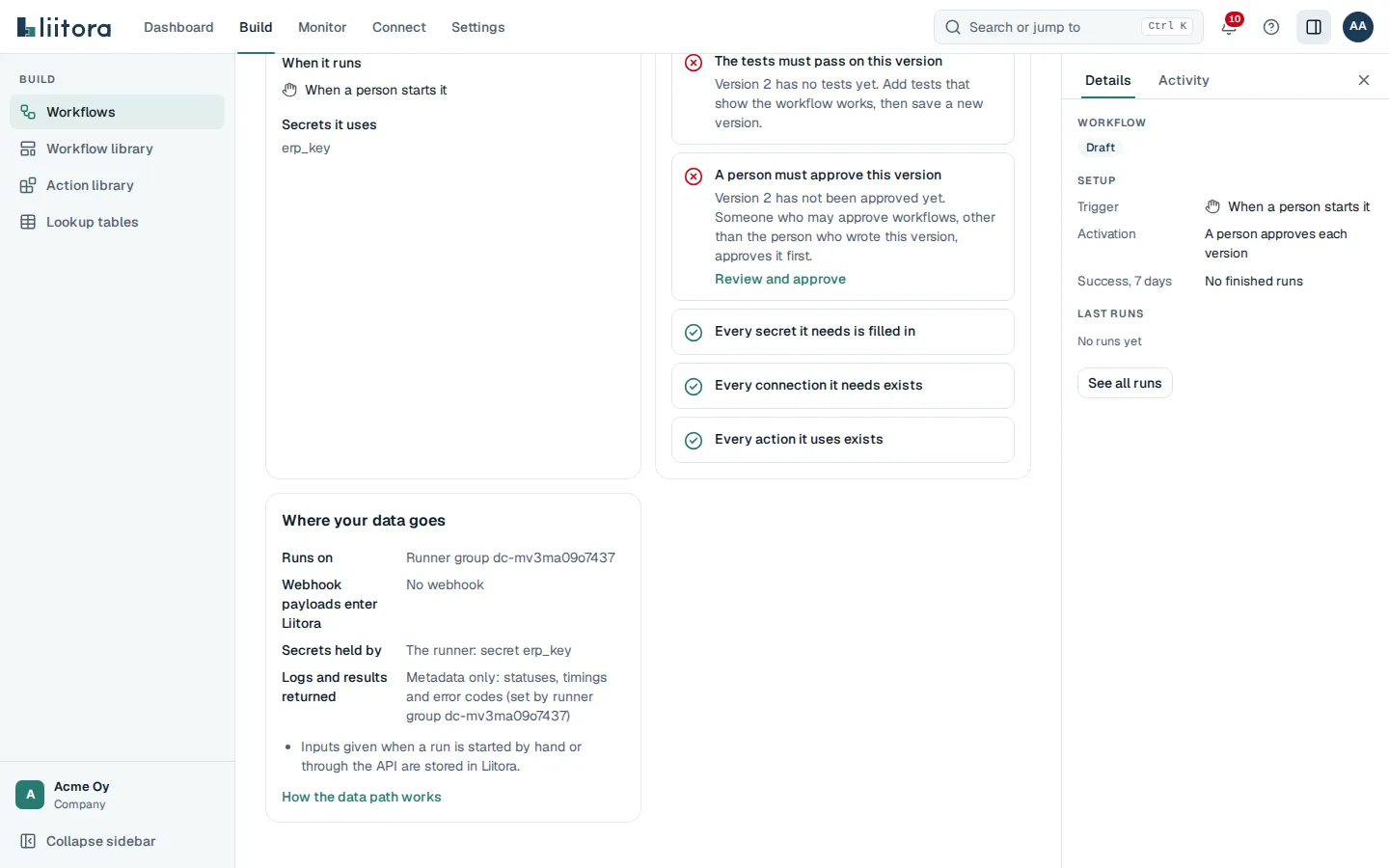
Section titled “Check where the data goes”Open the workflow. Where your data goes on the Overview tab says, for the version you look at:
- Runs on: the runner group.
- Webhook payloads enter Liitora: Yes when the workflow has a webhook trigger, because Liitora receives the delivery and hands it to the runner. It says No, received by the runner when the trigger has
receive: runner. See Receive webhooks inside your network. - Secrets held by: usually The runner. It says Both when Liitora also holds something for this workflow: the secret of its webhook endpoint (unless the runner receives the webhook), or the credentials of the connection its poll trigger checks.
- Logs and results returned: what the group sends back. It says Needs a new approval when the group now sends back more than the version was approved with.
The approver sees the same card before approving, and the version comparison lists every answer that changed. See Where your data goes.
Secrets on the runner
Section titled “Secrets on the runner”Secrets for a runner workflow come from your own environment, never from Liitora. Activating such a workflow doesn’t check Liitora’s secret store. The runner only reads secrets; a step that would save one fails.
From environment variables (LIITORA_RUNNER_SECRETS=env, the default):
LIITORA_SECRET_ERP_KEYholds the value of the secreterp_key.LIITORA_SECRET_ERP_KEY__USERNAMEholds the fieldusernameof that secret.
From Vault or OpenBao (LIITORA_RUNNER_SECRETS=vault): set LIITORA_RUNNER_VAULT_ADDR, the KV version 2 mount in LIITORA_RUNNER_VAULT_MOUNT (default secret) and the path below it in LIITORA_RUNNER_VAULT_PATH. Sign in with LIITORA_RUNNER_VAULT_TOKEN, or with AppRole through LIITORA_RUNNER_VAULT_ROLE_ID and LIITORA_RUNNER_VAULT_SECRET_ID. Give the runner a policy that can only read that path.
AWS connections on a runner
Section titled “AWS connections on a runner”A workflow on your runner can use an AWS connection. The runner signs in to AWS itself, so the access key stays in your environment and Liitora never sees it.
- Give the runner both halves of the access key, under the secret name the connection uses, for example
aws_key:LIITORA_SECRET_AWS_KEY__ACCESS_KEY_IDholds the access key ID.LIITORA_SECRET_AWS_KEY__SECRET_ACCESS_KEYholds the secret access key. With Vault or OpenBao, store them as the fieldsaccess_key_idandsecret_access_keyof the secretaws_key.
- Add the connection’s hosts to
LIITORA_RUNNER_EGRESS_ALLOW: the STS endpoint of your Region and each service, for examplests.eu-north-1.amazonaws.com:443,iam.amazonaws.com:443. If the runner has a policy, list them underdestinationstoo, and allow the secret name.
Each run gets its own AWS session, as on Liitora. The connection still has to exist in Liitora, with the Region, the services, the role and the external ID. Rotate the key in your own environment, with the steps in Rotate the access key.
Choose where the runner may connect
Section titled “Choose where the runner may connect”LIITORA_RUNNER_EGRESS_ALLOW lists the only places your automations may call from the runner, as host:port separated by commas. Calls use HTTPS unless an entry starts with http://. Anything else is refused. Addresses on the machine itself are allowed only when you list their IP address, and link-local addresses (such as cloud metadata addresses) are always refused.
With a policy file, the runner connects only to places that are both in this list and in the policy’s destinations.
If your systems use certificates from your own certificate authority, put its PEM file in LIITORA_RUNNER_EGRESS_CA_FILE. For a private certificate on the Liitora address, use LIITORA_RUNNER_CA_FILE.
Limit what the runner may run
Section titled “Limit what the runner may run”Liitora only sends the runner versions that a person approved. If you also want a rule of your own that Liitora can’t change, give the runner a policy file. It lists the destinations, secret names and actions a workflow may use, and whether workflows may contain code of their own. The runner refuses any version that goes beyond it, and the run fails with policy_refused. See Limit what your runner may run.
All settings
Section titled “All settings”| Setting | What it does |
|---|---|
LIITORA_RUNNER_URL |
The Liitora address (required) |
LIITORA_RUNNER_STATE_DIR |
Folder where the runner keeps its credential (required) |
LIITORA_RUNNER_REGISTRATION_TOKEN |
The token for the first start |
LIITORA_RUNNER_VERSION_KEYS |
The version key; several separated by commas while the key changes (required) |
LIITORA_RUNNER_NAME |
The name shown on the Runners page (default: the machine’s name) |
LIITORA_RUNNER_CONCURRENCY |
Runs at the same time, 1 to 64 (default 2) |
LIITORA_RUNNER_POLL_SECS |
Seconds between requests for work when idle, 1 to 300 (default 5) |
LIITORA_RUNNER_CA_FILE |
Your certificate authority for the Liitora address |
LIITORA_RUNNER_EGRESS_ALLOW |
Where automations may connect |
LIITORA_RUNNER_EGRESS_CA_FILE |
Your certificate authority for those places |
LIITORA_RUNNER_SECRETS |
env or vault |
LIITORA_RUNNER_POLICY_FILE |
A policy file that limits which workflow versions the runner runs. See Limit what your runner may run |
LIITORA_RUNNER_WEBHOOK_LISTEN |
Turns on receiving webhooks on the runner. See Receive webhooks inside your network for this and the other LIITORA_RUNNER_WEBHOOK_ settings |
When runs wait
Section titled “When runs wait”Runs of a runner workflow wait in the queue until a runner of its group asks for work. If they wait more than 10 minutes and no runner of the group contacted Liitora, admins get the runner_unavailable alert, once per outage.
Check that:
- the runner container is running, and its log doesn’t say to register again;
- the machine can reach the Liitora address over HTTPS;
- the group on the Runners page still has the runner. If you removed the runner or its group, create a new token and start the runner with it.
If a runner stops in the middle of a run, the run goes back to the queue, at the latest about two minutes later, and another runner of the group picks it up.
Not available on runners yet
Section titled “Not available on runners yet”A step that uses one of these fails with runner_unsupported:
- calling another workflow;
- saving files from a run;
- setting items aside;
- certificate sign-in;
- retrying a run from a chosen step.
Change detection on a runner
Section titled “Change detection on a runner”Change detection that compares with the last successful run (platform/sync.diff with snapshot: true) works on a runner when its group sends everything back (full). The snapshot keeps the record keys and a fingerprint of each record on Liitora, never the field values. It is saved when the run succeeds, as on Liitora.
In a group that sends back only statuses and timings, such a step fails with runner_unsupported, because the keys would reach Liitora. Compare with a target list instead, which keeps everything on the runner.
A runner sends at most about 2 MB of record keys and fingerprints for one step, roughly 30,000 records with short keys. For more, split the records over several steps, or run the workflow on Liitora.