

Use lookup tables
Who this is for: people who build workflows, and the people who keep reference data such as codes, names and rates up to date.
Before you start: to create, change, import or remove lookup tables you need the Activate workflows permission. Everyone who can see workflows can see and export them.
A lookup table is a small table your workflows read with lookup() (or ctx.lookup() in a script), for example to turn a cost centre code into a name, or a country code into a VAT rate. The first column is the key. Change a row in Lookup tables, and the next runs of every workflow that reads the table use the new row. You don’t need a new workflow version or an approval for that.
Create a table
Section titled “Create a table”- Open Lookup tables and select New lookup table.
- Type a Name: lowercase letters, digits and
_, starting with a letter, for examplecost_centers. Workflows use this name. - If you like, say what the table is for.
- Under Start from, pick An empty table or A CSV file, and choose the file.
- Select Create table.
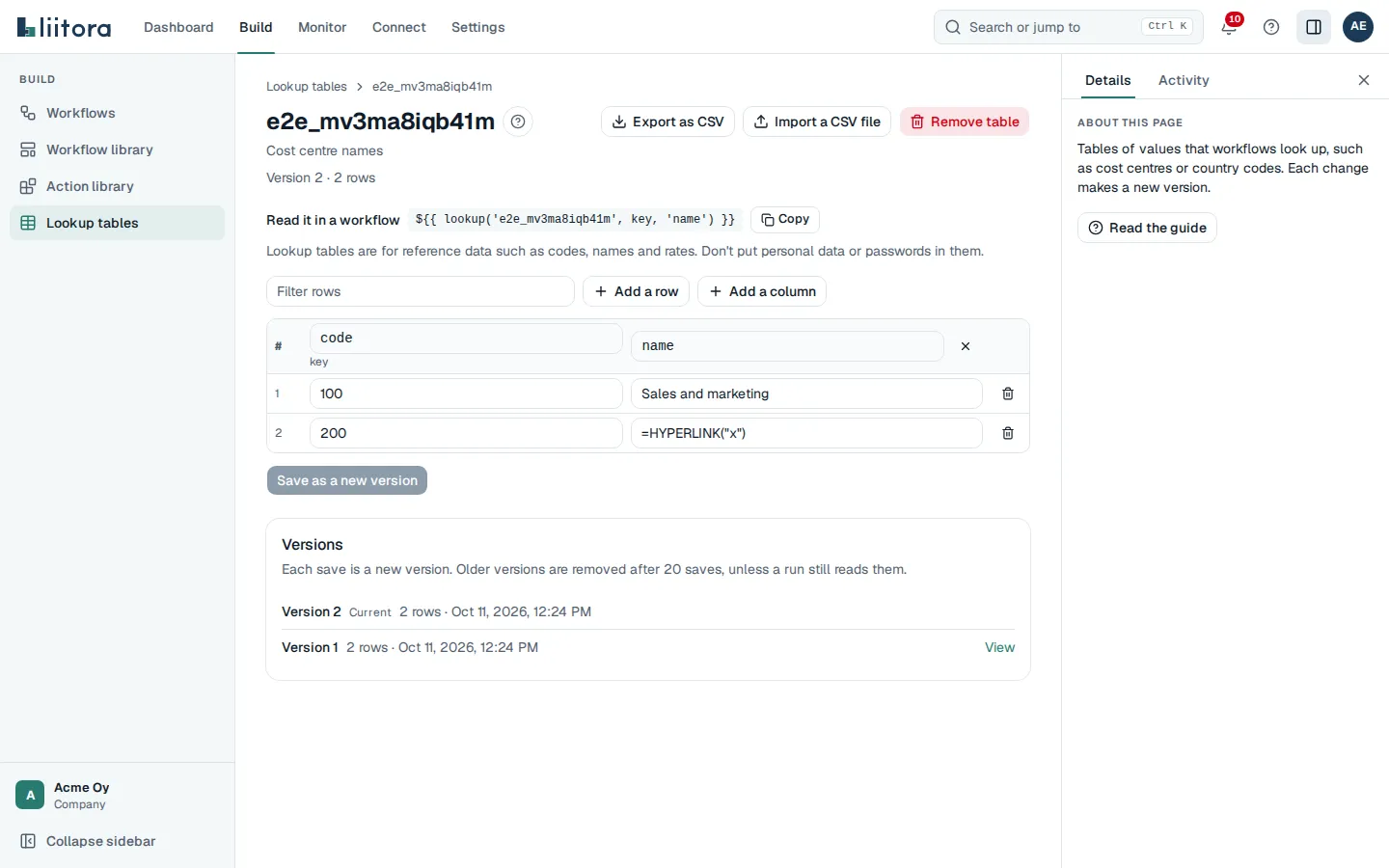
An empty table starts with the columns key and value. Rename them, add columns with Add a column and rows with Add a row, then select Save as a new version. Rows that are completely empty are left out when you save.
Each key (the first column) must be unique and can’t be empty or start or end with a space. Liitora explains the problem before saving, for example “Rows 1 and 2 have the same key, 100.”
Import and export CSV
Section titled “Import and export CSV”Import a CSV file replaces every row and column of the table and saves the result as a new version. Export as CSV downloads the version you are looking at. A full export of your company’s data includes every kept version of every table, each as the same CSV file. See Export or delete your data.
- The file is UTF-8 text with a header row. Commas, semicolons and tabs all work: Liitora reads the separator from the header row. A byte order mark at the start is fine.
- Quote a cell with
"when it holds the separator or a line break, and write a quote inside it as"". A file with a quote that is never closed is refused. - Every row needs as many cells as the header row. A row with more or fewer cells is refused, and the message names its line, so you can fix the separators or quotes there. Empty rows are skipped.
- A table can have up to 10,000 rows and 20 columns. A file can be up to 1 MB, and a cell up to 1,000 characters.
- A file with the same key twice is refused, with both row numbers, so you can fix it in the file and import it again. Nothing is saved until the whole file is valid.
- A company can have up to 50 lookup tables.
Spreadsheet formulas are made harmless on export. A cell that starts with =, +, -, @, a tab or a carriage return (also after leading spaces, and the full-width signs such as =) gets a ' in front of it in the exported file, so a spreadsheet shows it as text instead of running it as a formula. When you import that file again, Liitora removes the ', so the cell is the same as before.
Versions
Section titled “Versions”Every save, import or restore creates a new version. The old versions stay as they were.
- A run reads the version that was current when the run started, for its whole life. Changing a table never changes a run that is already going, and a retried step reads the same rows again. A table that only a script reads gets its version at the script’s first read.
- The run’s log says which versions it reads, for example
lookup tables: cost_centers v3. - The run page lists the tables the run read under Lookup tables read, each with its version. Select a name to open exactly that version, even after the table has changed. The API and your AI assistant show the same list (
lookup_tablesonGET /api/v1/runs/{id}, and theget_runtool). - Under Versions, select View to see an older version. Select Restore this version to save its rows as a new version.
- Liitora keeps the last 20 versions of a table, and also every older version that a run still reads.
- If someone else saved the table while you were editing, your save is refused and you’re asked to reload, so nobody’s change is lost.
Read a table in a workflow
Section titled “Read a table in a workflow”Use lookup('<table>', key, '<column>') anywhere you can write an expression. The table name must be written in quotes.
steps: - id: notify name: Tell the cost centre's team about the invoice uses: platform/email.send@v1 with: to: ["${{ lookup('cost_centers', trigger.body.cost_center, 'team_email', 'finance@example.com') }}"] subject: "Invoice for ${{ lookup('cost_centers', trigger.body.cost_center, 'name') }}" text: A new invoice is waiting for approval.- Without a column,
lookup('cost_centers', '100')gives the whole row as an object, such as{"code": "100", "name": "Sales"}. - The key is compared as exact text. A number is turned into text first, so
100finds the key100. - A key that isn’t in the table stops the step with an error that names the table, its version and the key. Give a fourth argument to use a fallback value instead.
- A column that doesn’t exist, or a table that doesn’t exist, is also an error with the names to use.
In a script
Section titled “In a script”A script reads a table with ctx.lookup, with the same arguments and answers:
export default async function run(ctx, input) { return { name: await ctx.lookup("cost_centers", input.costCenter, "name", "Unknown"), };}In a script the table name doesn’t have to be written in quotes: it can come from a variable. See Script host API: lookup tables.
When you save a workflow, Liitora warns you if it reads a lookup table that doesn’t exist yet (unknown_lookup_table). The workflow can still be saved, so you can create the table afterwards.
Lookup tables in tests
Section titled “Lookup tables in tests”Workflow tests never read your company’s real lookup tables, so a test gives the tables it needs under given.lookups. Both lookup() and ctx.lookup read them:
{ "name": "Emails the cost centre's team", "given": { "lookups": { "cost_centers": { "columns": ["code", "name", "team_email"], "rows": [["100", "Sales", "sales@example.com"]] } } }, "expect": { "outcome": "success" }}See Test case format.
With your AI assistant or the API
Section titled “With your AI assistant or the API”Your AI assistant has the tools list_lookup_tables, get_lookup_table, save_lookup_table and delete_lookup_table. Ask it, for example, “add cost centre 300, Logistics, to the cost_centers table”. It tells you what it changed.
Programs use these routes:
GET /api/v1/lookup-tableslists the tables.GET /api/v1/lookup-tables/{name}reads the current version with its rows. Add?version=3for an older one.GET /api/v1/lookup-tables/{name}/versionslists the versions.GET /api/v1/lookup-tables/{name}/export?version=3downloads a version as CSV.PUT /api/v1/lookup-tables/{name}creates a table or saves a new version. Sendcolumnsandrows, orcsvwith the whole file as text, andexpected_versionwith the version you read (leave it out to create a table).DELETE /api/v1/lookup-tables/{name}removes a table with all its versions.
Every change is in the audit log with the table name, the version and the number of rows and columns, never the cells.
Remove a table
Section titled “Remove a table”Open the table and select Remove table. Every version is removed at once. A workflow that still reads the table stops with an error at lookup() or ctx.lookup until a table with that name exists again. Runs that read the removed table no longer list it on their run page. The run log still names the table and version the run read, and the audit log records who removed the table. To keep a copy, export the versions you need first.